Start using Solarion in minutes
This guide walks you through the basic steps to begin using Solarion and get your first results.
Before you begin, make sure you:
- have access to your Solarion account, and
- are logged in to the platform.
Step 1: Upload content
To get results from Solarion, you first need to add content. Each user has access to two workspaces that organize folders and files: Personal and Organization.
Let's begin by uploading a folder with several PDFs to the Personal workspace.
- Go to your Personal workspace.
- Click the Upload button.
- Select Upload Folder.
- Select a folder on your device.
- Click Upload in the confirmation pop-up.
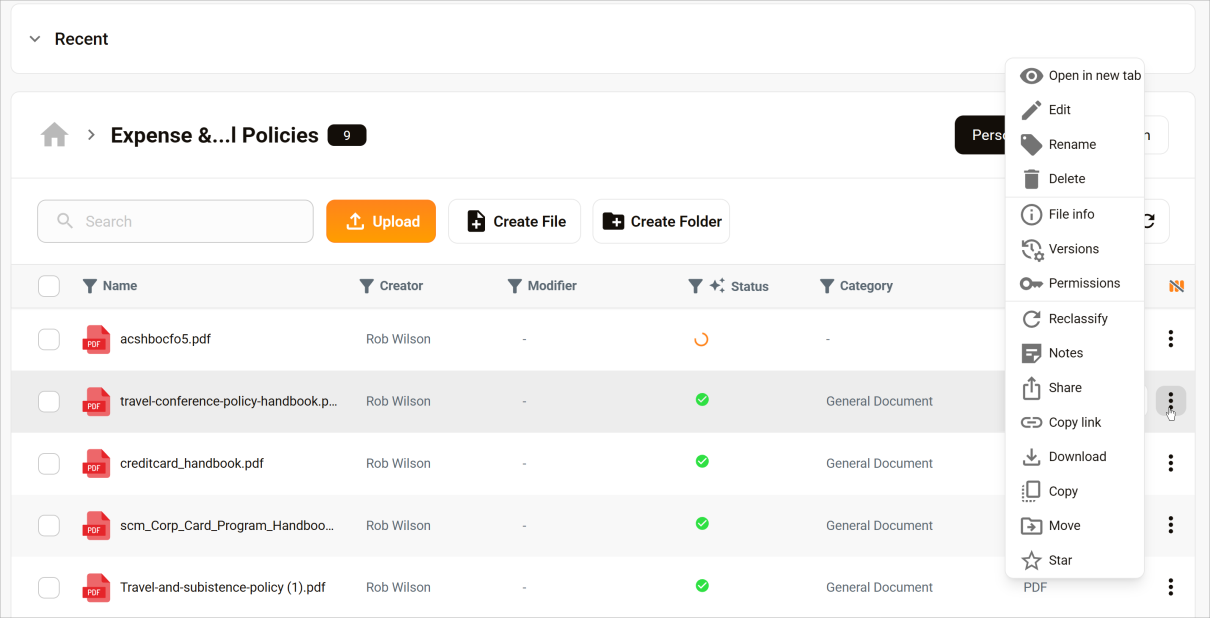
- Wait for the upload to complete.
Solarion processes your content during upload. A green check mark means processing is complete and the file is ready to search. To see available actions, click the three-dot icon next to any file or folder.
Step 2: Ask your first question
Now you’re ready to use Solarion.
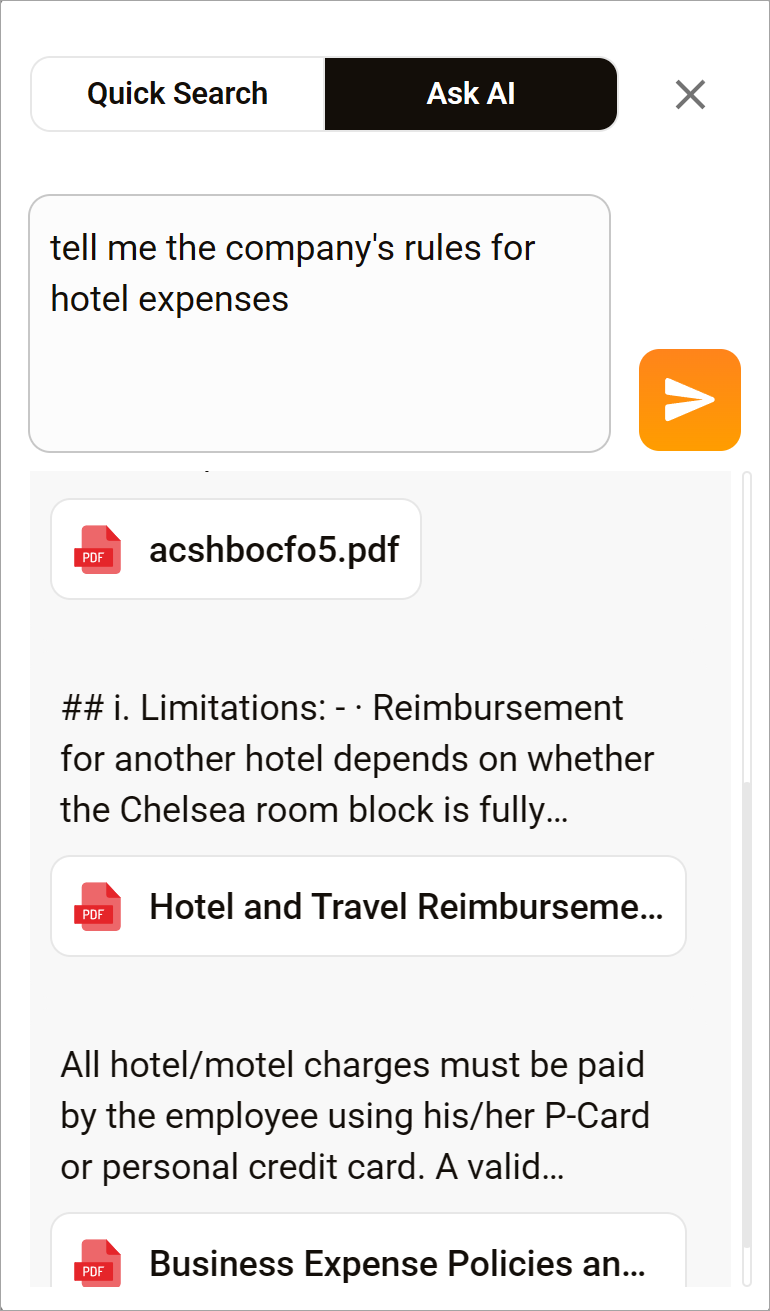
- Go to the top menu bar.
- Click the Global Search icon.
- Select the Ask AI tab.
- Enter a question in natural language.
- Press Enter.
Solarion analyzes your content and returns a list of relevant assets. Click a file to open the resource in a new tab.
Step 3: Ask LUMA
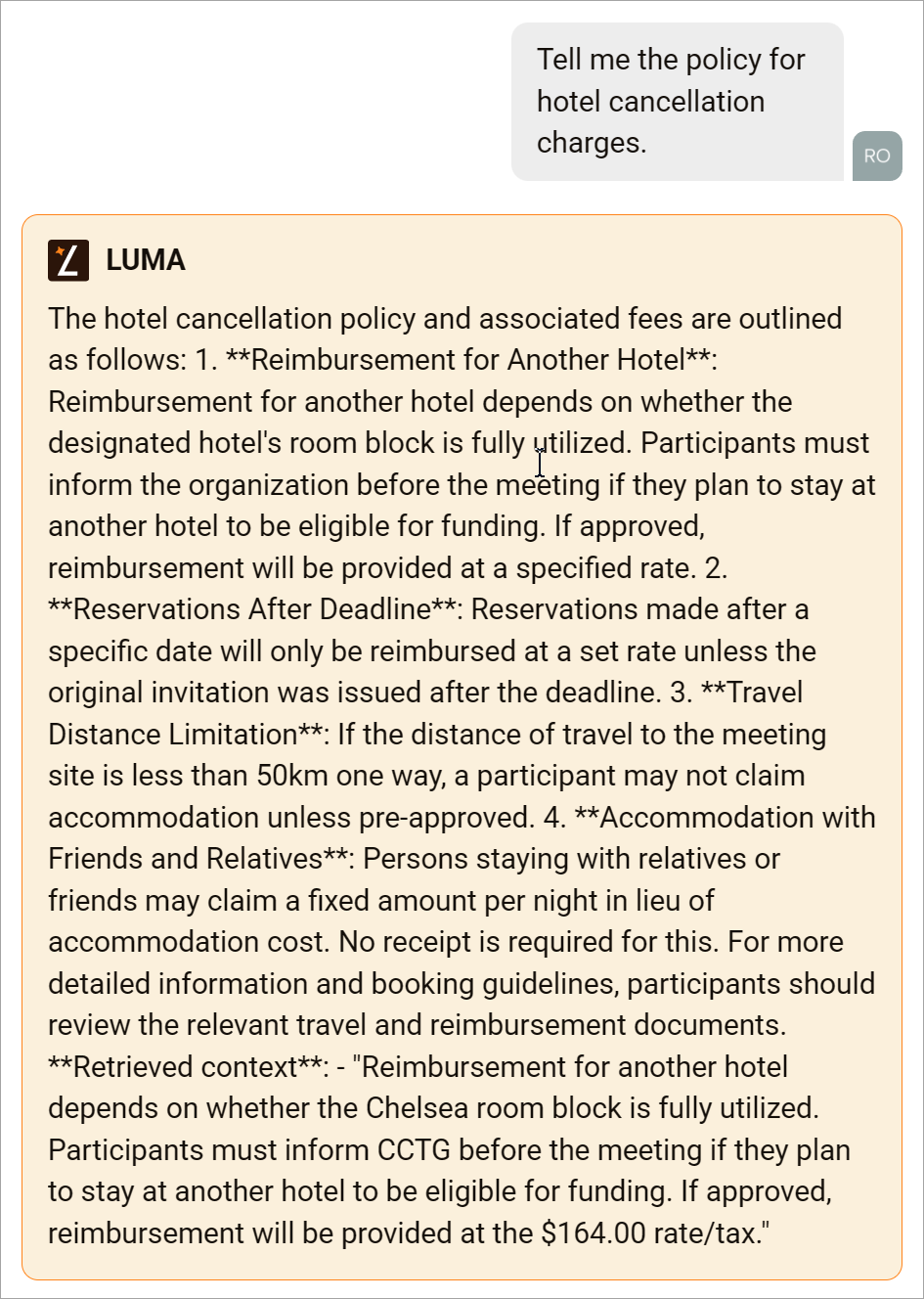
Next, explore a document with LUMA, our AI chat tool.
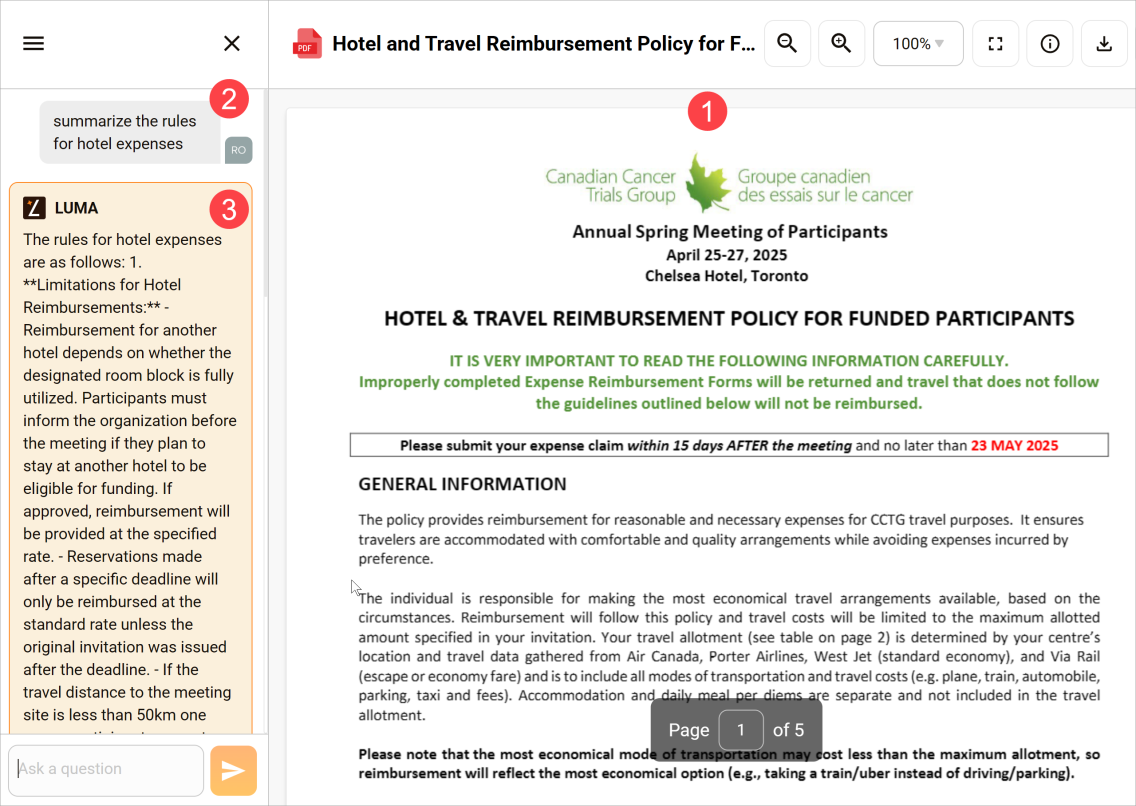
- The document opens in a new tab.
- Enter a question into the chat field and hit Enter.
- LUMA display the answer in the window.
Optionally, you can drill down on the same response to get more focussed answers.
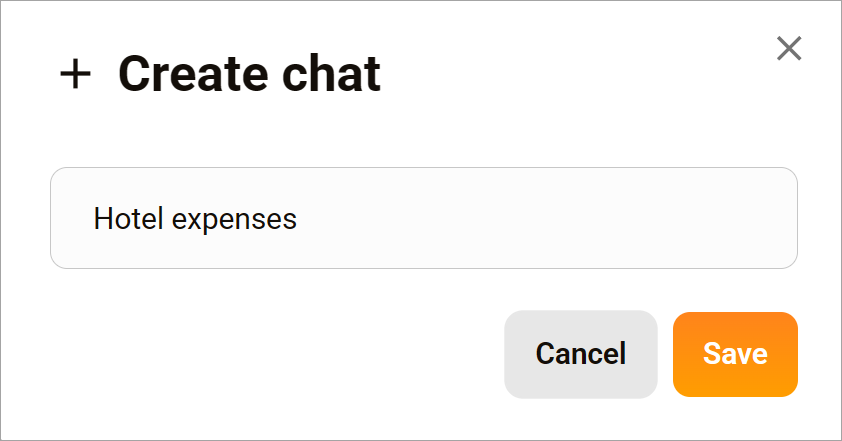
Step 4: Save the chat response
This is an optional step. You can save a record of the chat and make it accessible to others on your team. Go to the chat window and click the X icon in the top right corner. Follow the prompts to name and save the chat. Later, you and your team can open the file and review the chat.