Understand a document faster
LUMA answers questions about documents open in Preview mode. Ask a question and get summaries, explanations, and answers in seconds.
Open a file in Preview mode
The first step is to open a file in preview mode. There are two ways.
Hover a file record and:
- click the Preview file icon (eye icon), or,
- click the three-dot icon and select Open in new tab.
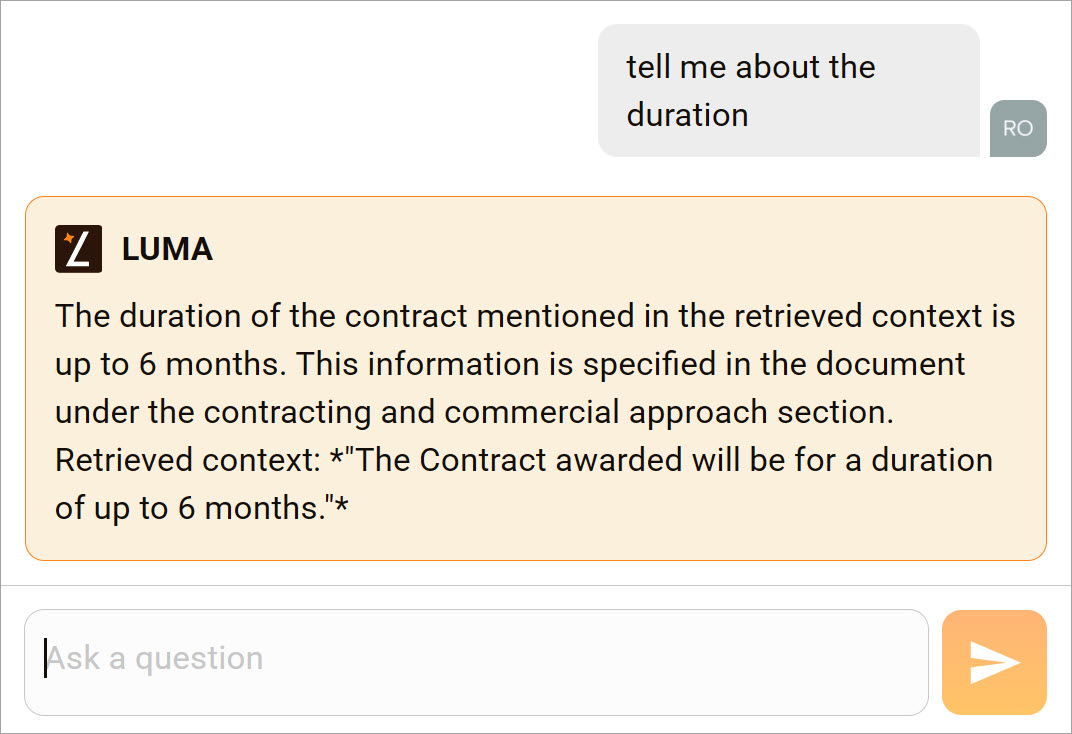
Start a chat
Next, go to the top-left corner and click the Chat button.
- Go to the chat field.
- Type a question in the chat box.
- Click the arrow button.
LUMA responds based on the content of your document.
Save the chat
When you close the chat window or Preview page, a pop-up asks if you want to save the chat. Saved chats are available to you and other users with file access permissions the next time the file opens in Preview mode.
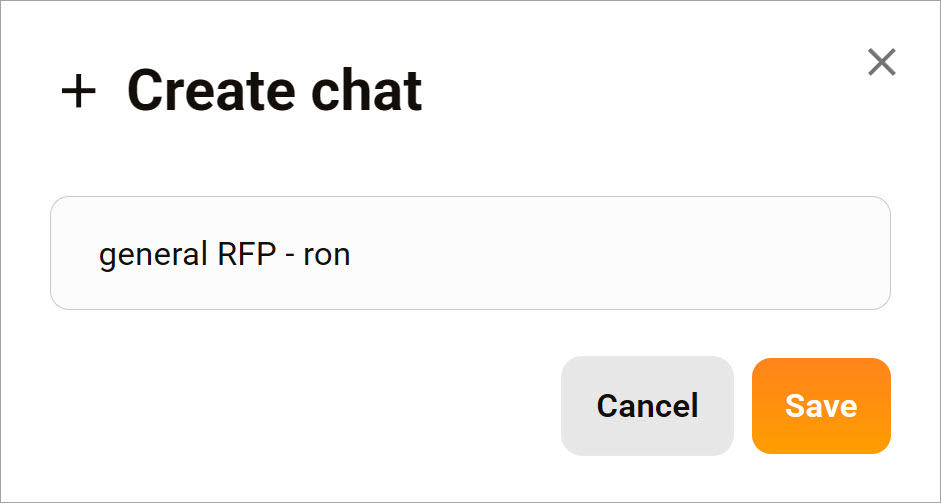
To save a chat, click Yes in the pop-up, then enter a unique name in the Create chat pop-up and click Save.
🟧 Click here to learn how to open saved chats.