Simplify permissions management
When you move a file or folder into an existing folder, the moved asset automatically inherits the permissions of the destination folder.
This means:
- The permissions from the top-level (parent) folder take precedence.
- Access to the moved file or folder is now controlled by the destination folder’s Permission Set (if applicable).
Why this happens
Permissions are managed at the top folder level to keep access consistent and easy to maintain. If you need different access permissions for the moved file or folder:
- Move the file or folder to a location with the correct permissions, or
- Create a new folder with the required permissions.
Scenario
An admin creates a folder named England on the Organization Workspace. The England folder allows users in test_group to read and edit its contents.
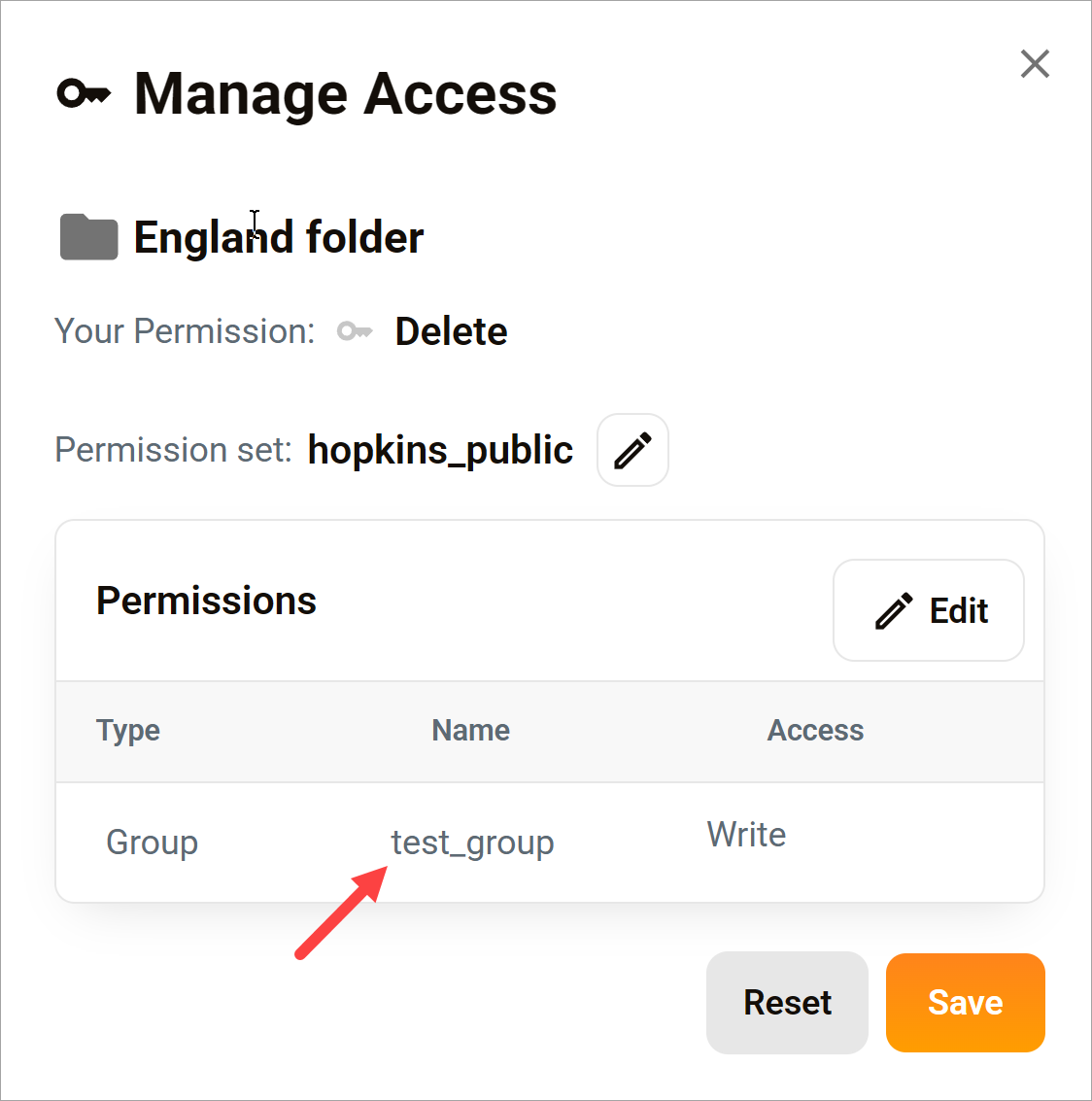
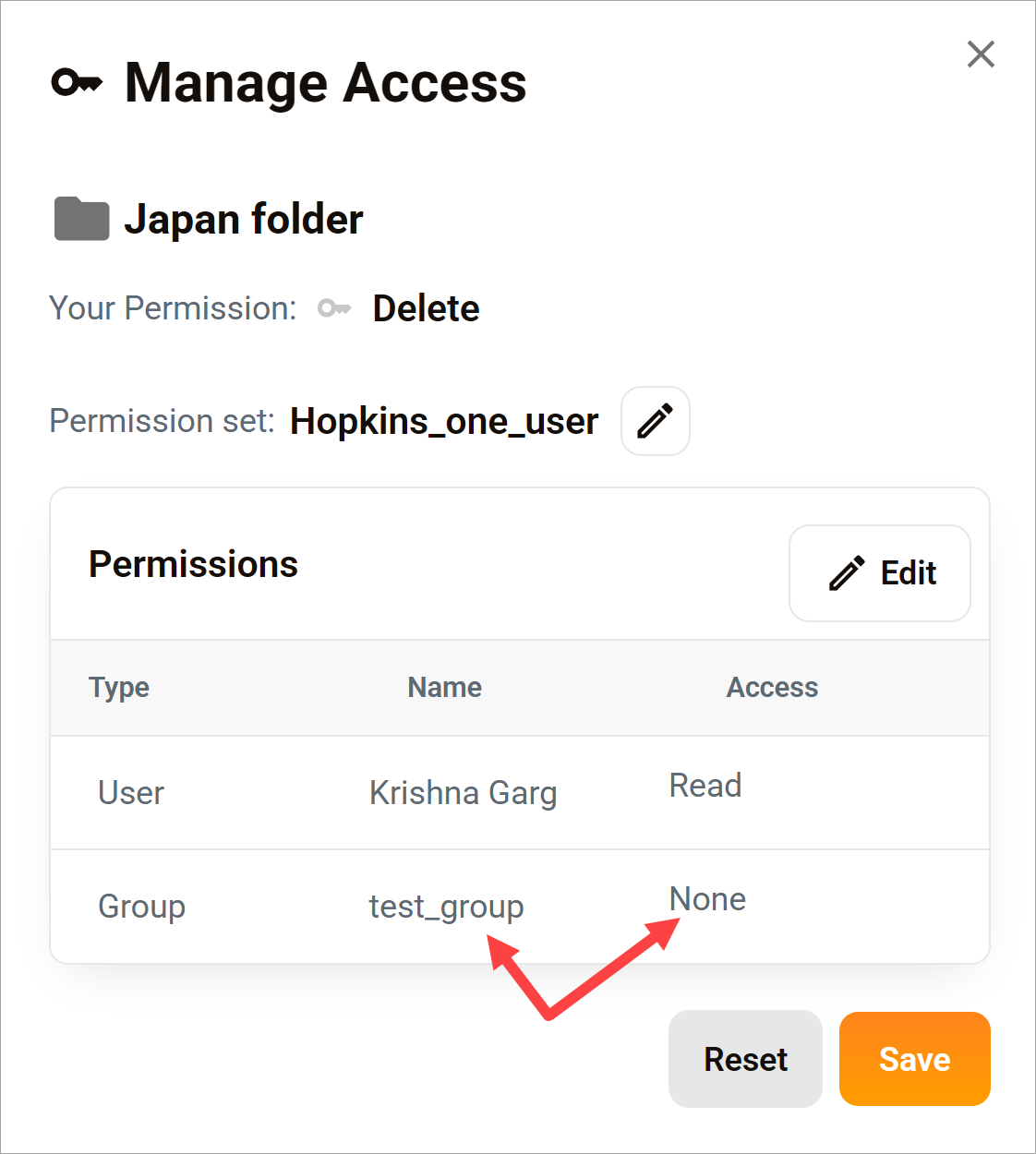
Them the admin moves the England folder into a folder named Japan. The Japan folder does not allow access for test_group.
After the move:
- The Japan folder’s permissions override the permissions set on the England folder.
- Users in test_group cannot access the Japan folder or its contents, which includes the England folder.
Finally, the admin moves the England folder back to the root of the Organization Workspace. Without changing any permissions, users in the test_group regain access to the England folder and its contents.