Audit edits and updates
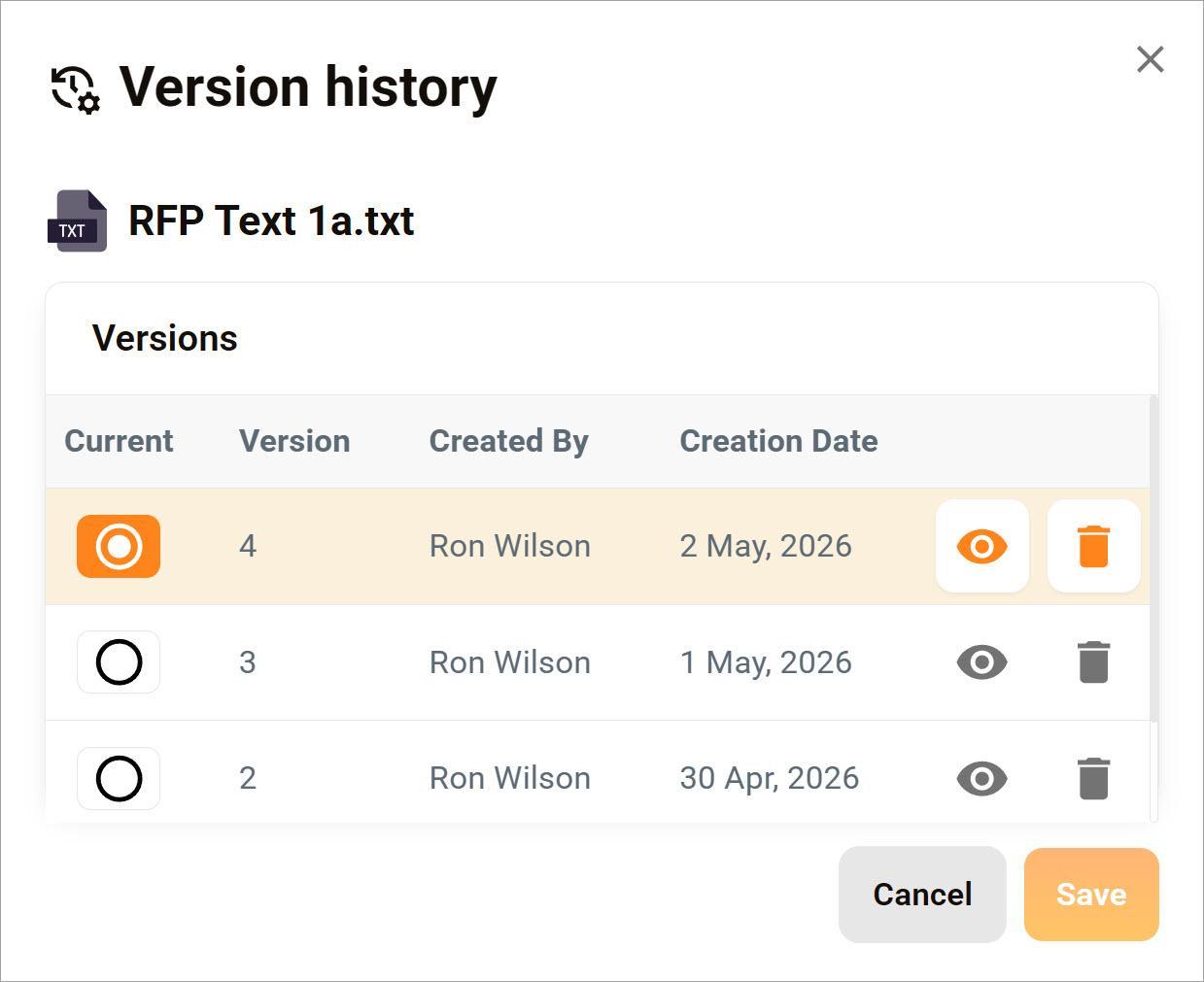
Every time a user updates a file with AuraSync, the platform creates a new version while retaining all previous versions. This allows you to track how the content has evolved and compare changes over time. If needed, you can revert by setting an older version as the current one.
Open the Versions window
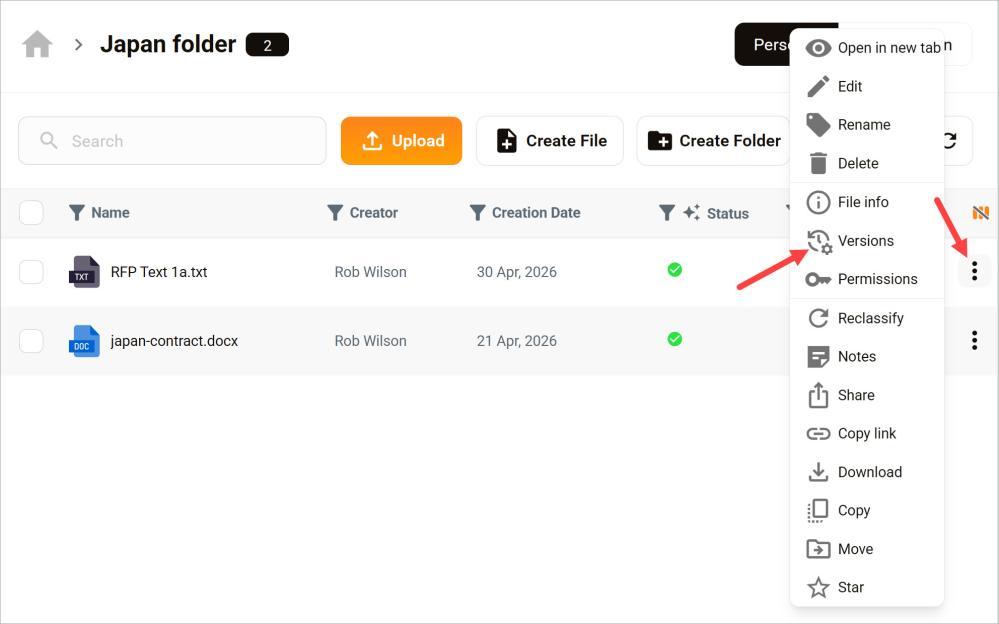
- Go to a workspace.
- Locate the row with the document you review.
- Click the three-dot icon.
- Select Versions. A pop-up displays.
Manage versions
In the pop-up, you have several options:
- Review: Click the eye icon to view the file in a new window.
- Delete: Click the trash can to remove the version, and then click the checkmark to confirm your choice.
- Revert: Go to the Current column, and select a different version to make it the active file.