Invite users to join the organization
Admins control platform access by sending secure invitations to users. Admins cannot manually create new user accounts. Every user must receive an email invite and complete their own signup.
Admins can only invite users with an approved company email domain (e.g. @mycompany.com). This ensures:
- Only verified users gain access.
- Email ownership is confirmed.
- Unauthorized account creation is prevented.
🟧 After you add a user, assign permissions to grant access all or a part of the Organization Workspace. Access to those files and folders is not automatic after a user completes the sign up workflow.
Invite a user
- Click Admin in the side menu.
- Click Users in the sub-menu.
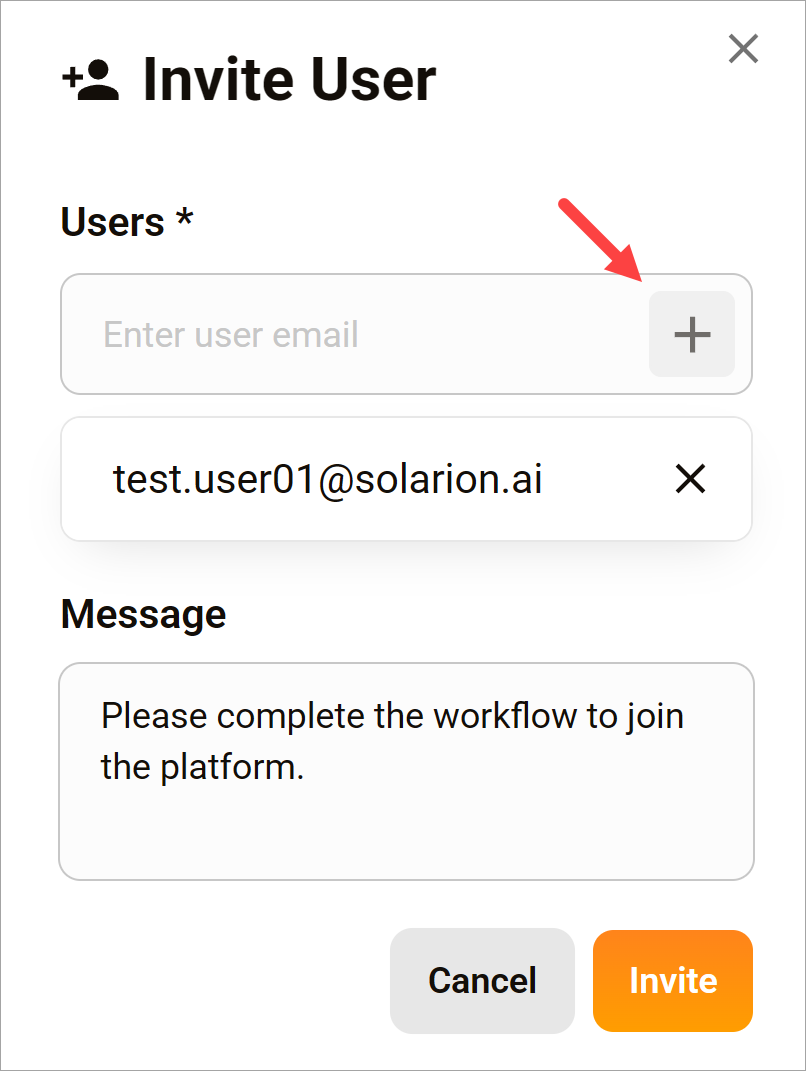
- Click the Invite button.
- Enter the user email address.
- Click the plus (+) button.
- Add more emails. (optional)
- Enter a message. (optional)
- Click the Invite button.
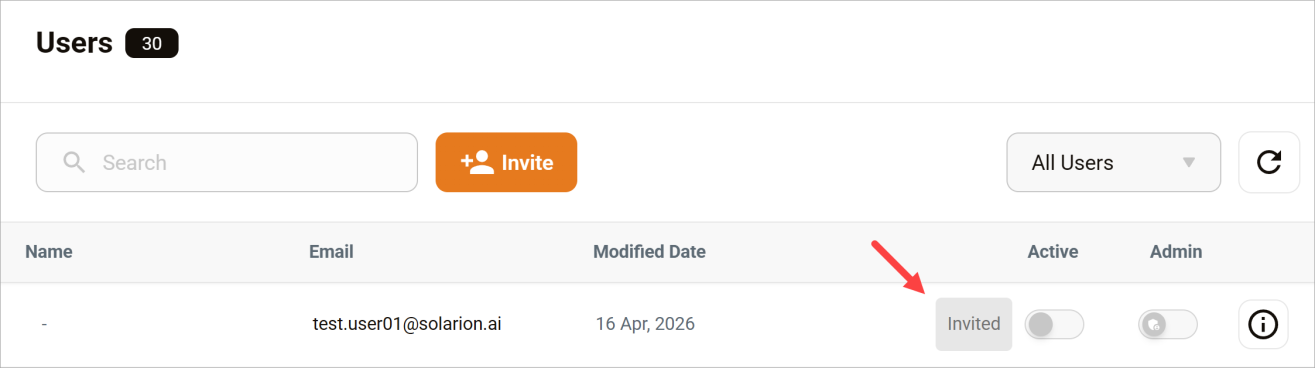
On the admin side, the Users table adds a record for the invited user. The status is not active.
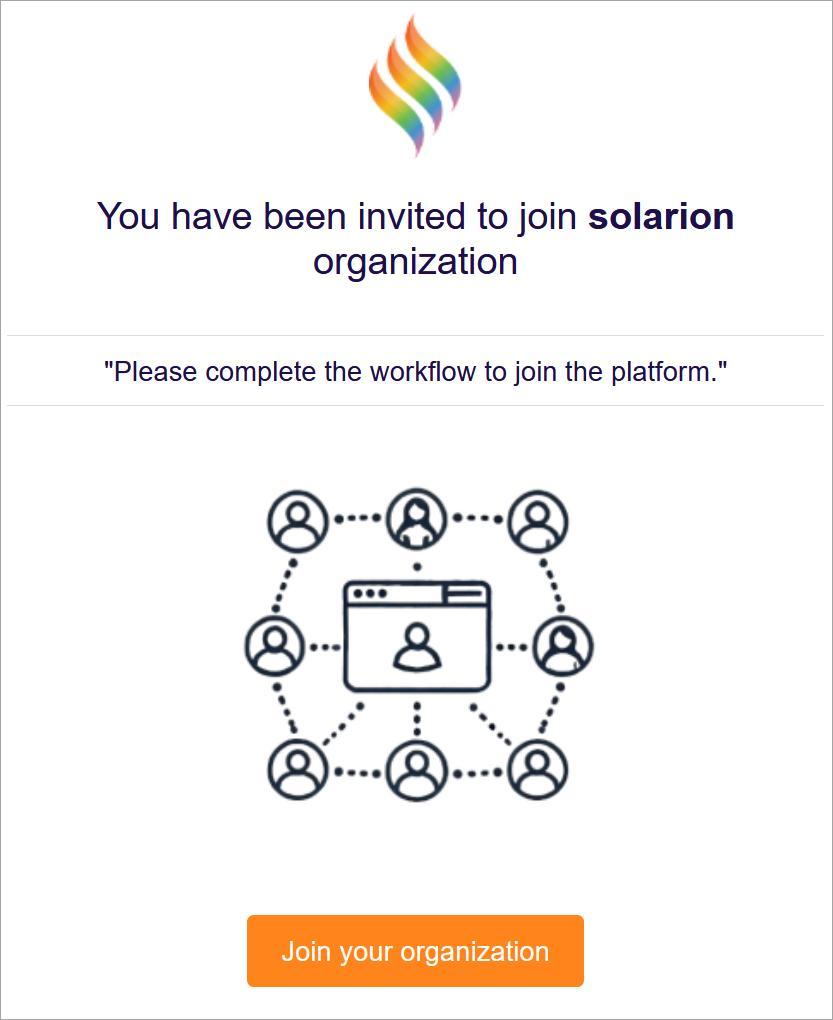
User response
The user opens the message and clicks the link. The workflow prompts the user to create a new password and then login with their organization email address and new password.
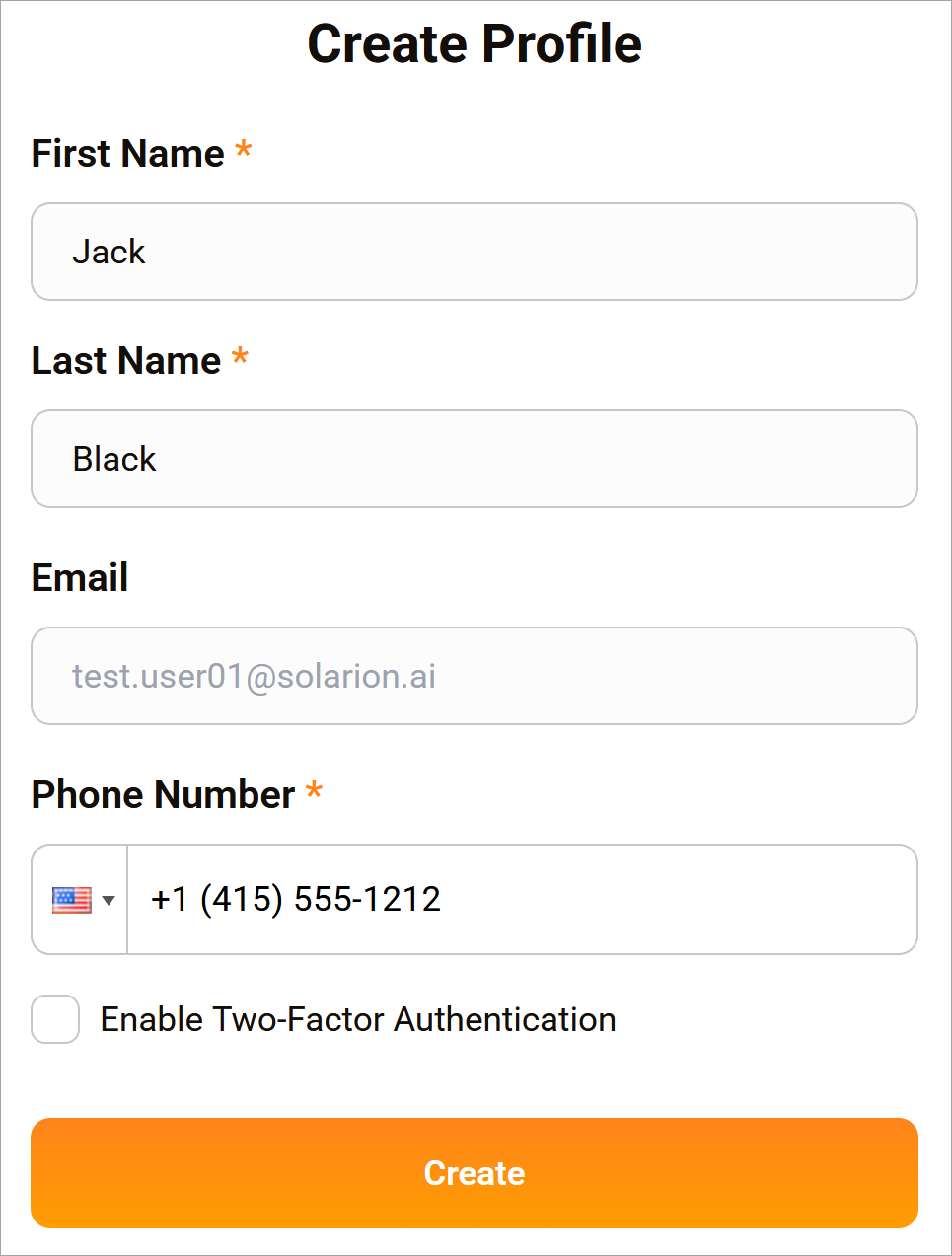
Next, the user creates a profile by filling in the required fields.
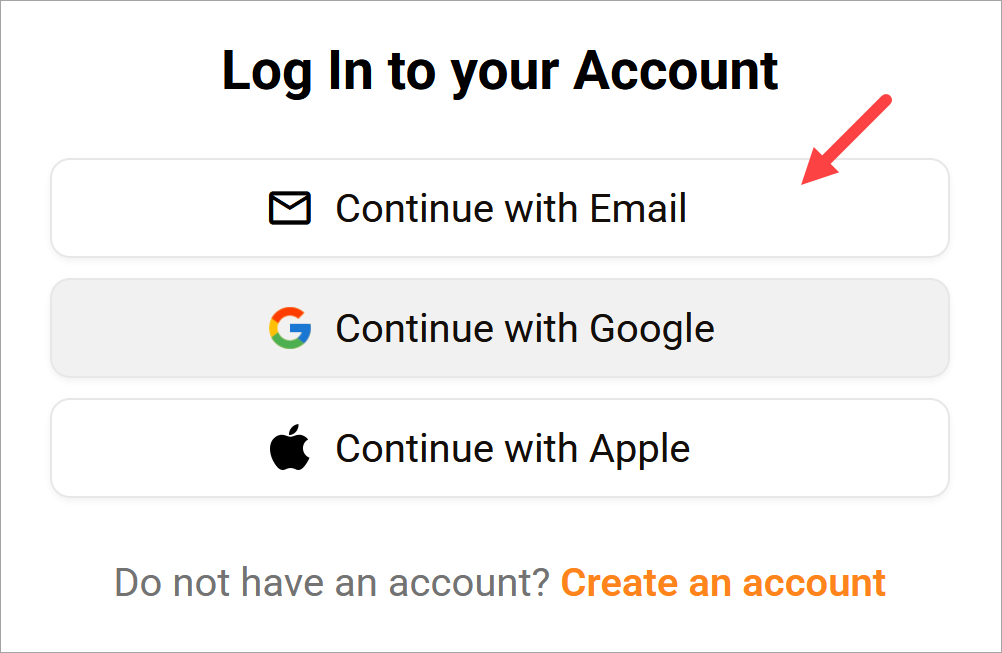
Finally, the user logs in with the organization email and new password.