A faster way to manage documents
AuraSync is a desktop app that gives you the ability to open and edit documents directly from your workspace. The light-weight app downloads files to your device for editing and automatically uploads changes back to your account.
Prerequisite
Make sure you have an authenticator app, such as Google Authenticator, installed on your mobile device before setting up and using the AuraSync app.
Download the installer
- Go to the top-right corner of the workspace.
- Click the Install AuraSync button.
- In the download window, select your operating system (Windows or Mac OS).
- Click the Download button.
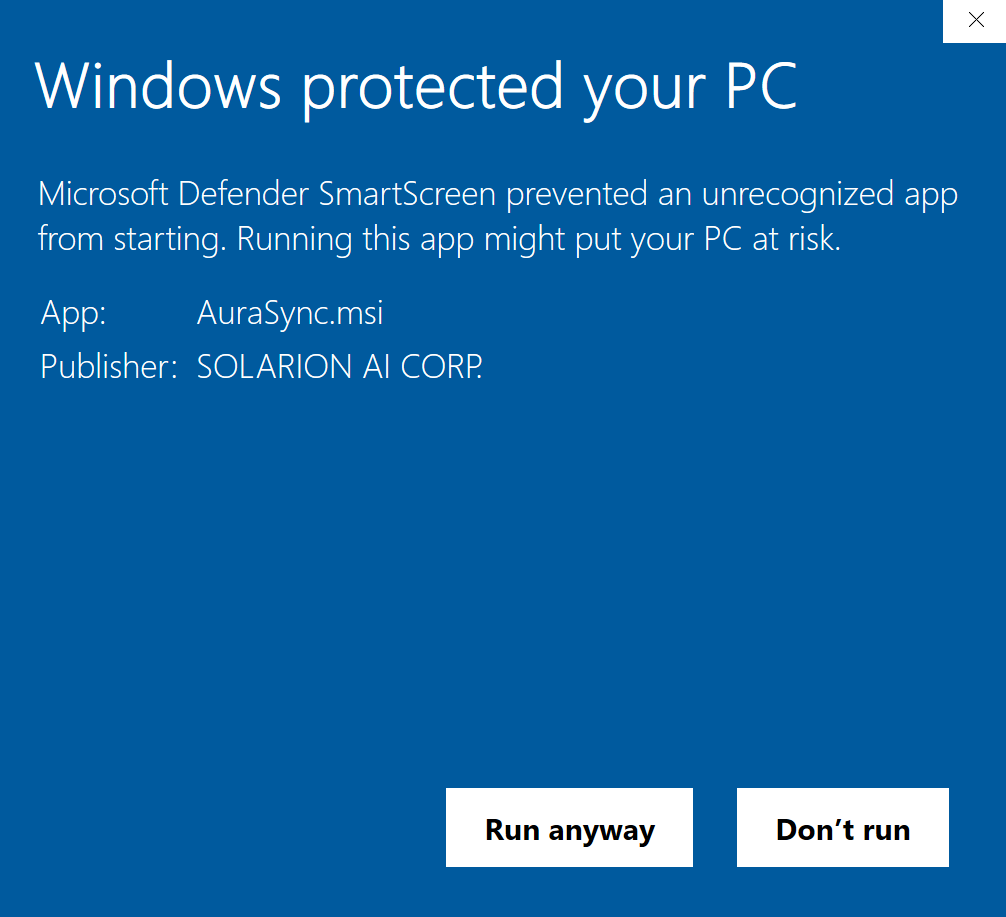
- Open the AuraSync file.
- In the pop-up, click the More info link.
- Click the Run anyway button.
🟧 You might need to adjust size of the install window to view the Run anyway button.
Install and activate the app
- Open the AuraSync installer.
- Review the terms.
- Select the checkbox to accept the terms.
- Click Install.
- After installation completes, click Finish.
Log in
- Open the app. Windows: Double-click the desktop icon or use the notification area. Mac OS: Open from Applications or the menu bar.
- Click the Log in button.
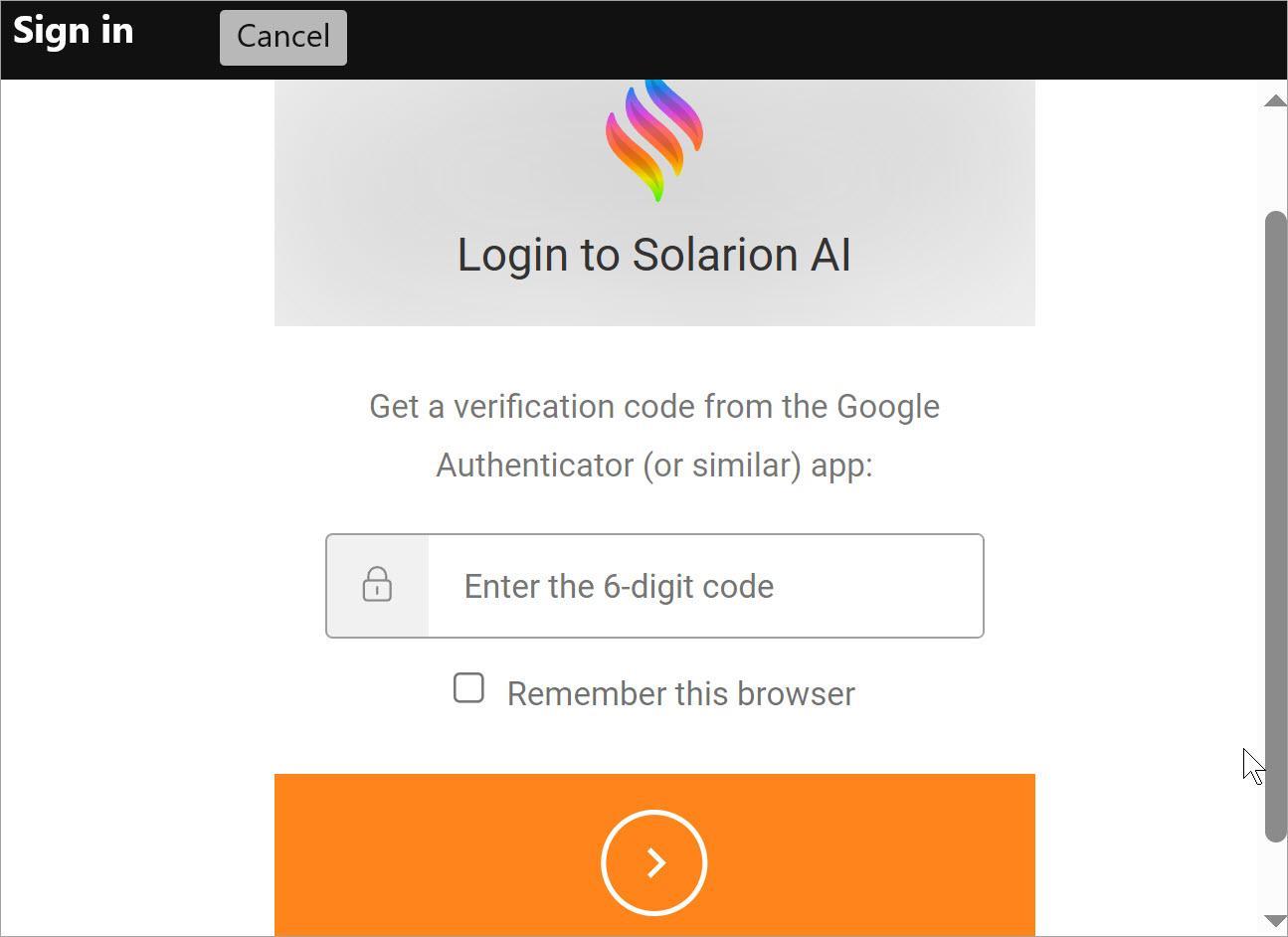
- Enter your organization credentials.
- Open the authenticator app on your device.
- Locate the six-digit code.
- Enter the code into the login window.
🟧 AuraSync is a separate app, so you must log in separately from Solarion. Use the same username and password, but enter them on a different login screen.
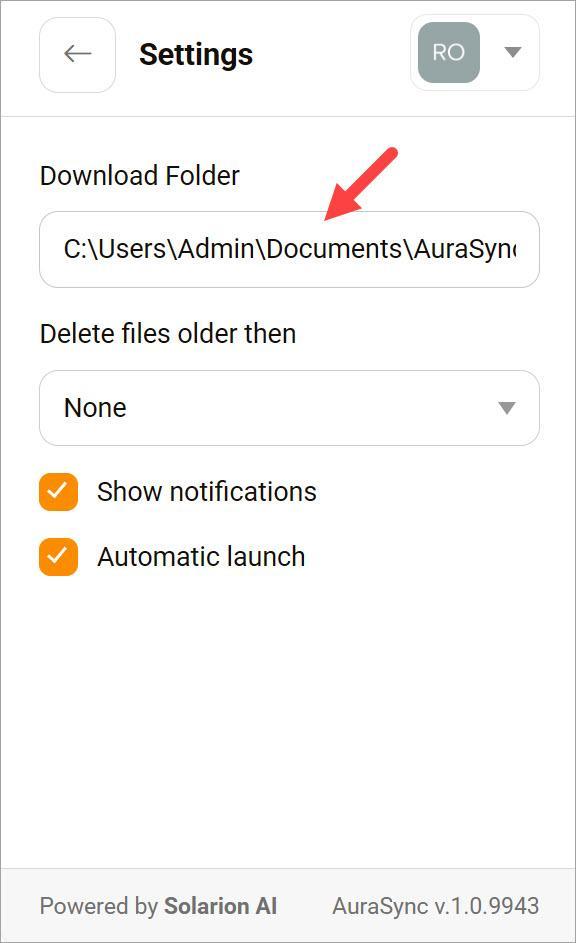
Review folder settings
- Open the app.
- Select Settings.
- Go to the Download Folder field.
- Locate the folder location.