Quickly share ideas
Capture ideas, organize information, and share updates without leaving your workspace. Quick Notes in My Space brings notes, file attachments, and collaboration together in one convenient location.
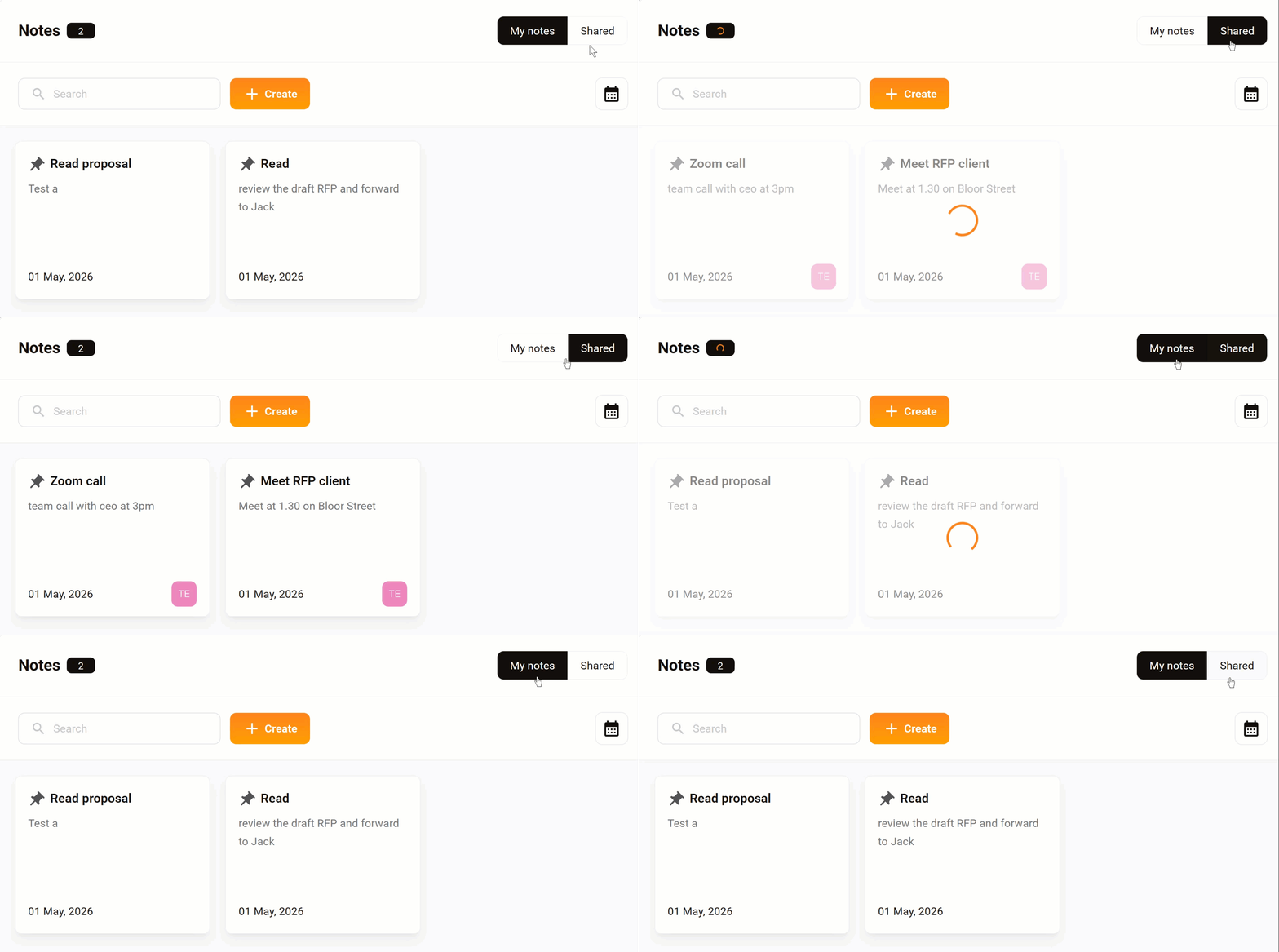
Switch between note workspaces
Use the tabs to switch between workspaces.
- My notes: Notes you created (including ones you’ve shared)
- Shared: The notes other users shared with you. Check the bottom right corner of each shared note to view the initials of the user who created and shared the note.
Create a note
- In My Space, click Quick Notes.
- Click Create.
- Go to the right-hand panel.
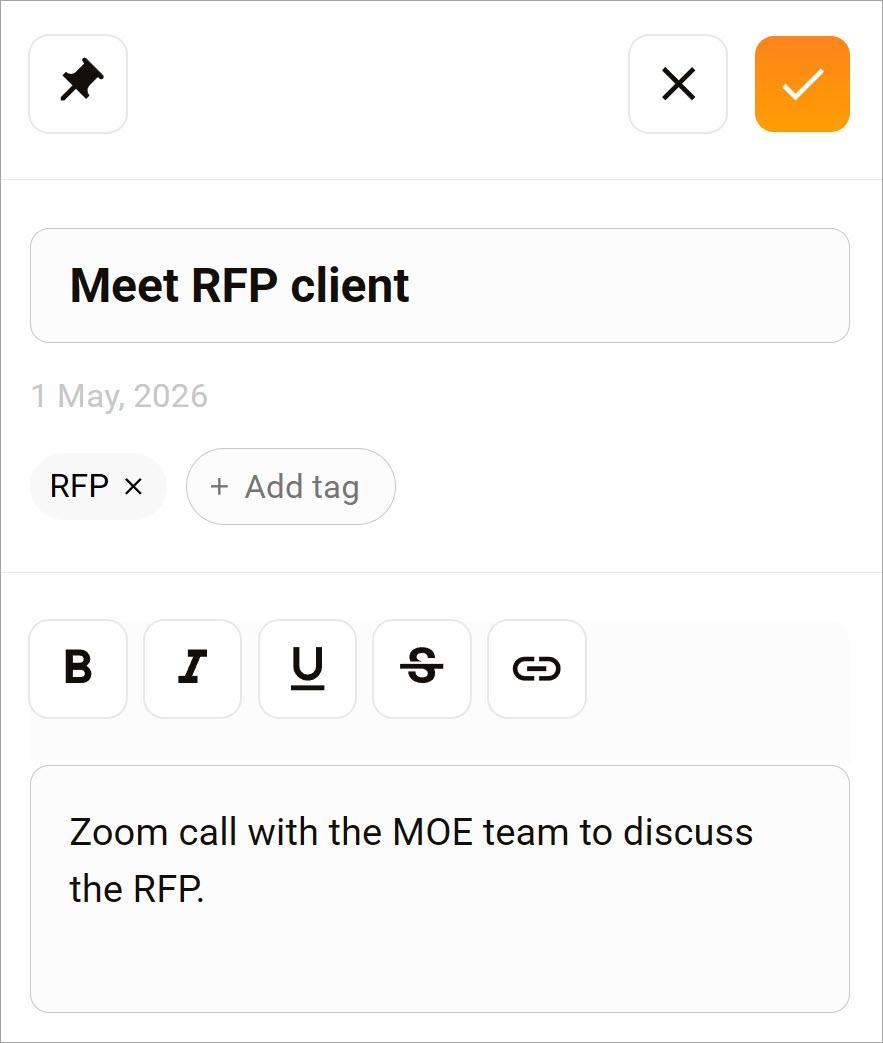
- Enter a title and content.
- Click the checkmark to save.
Attach a file
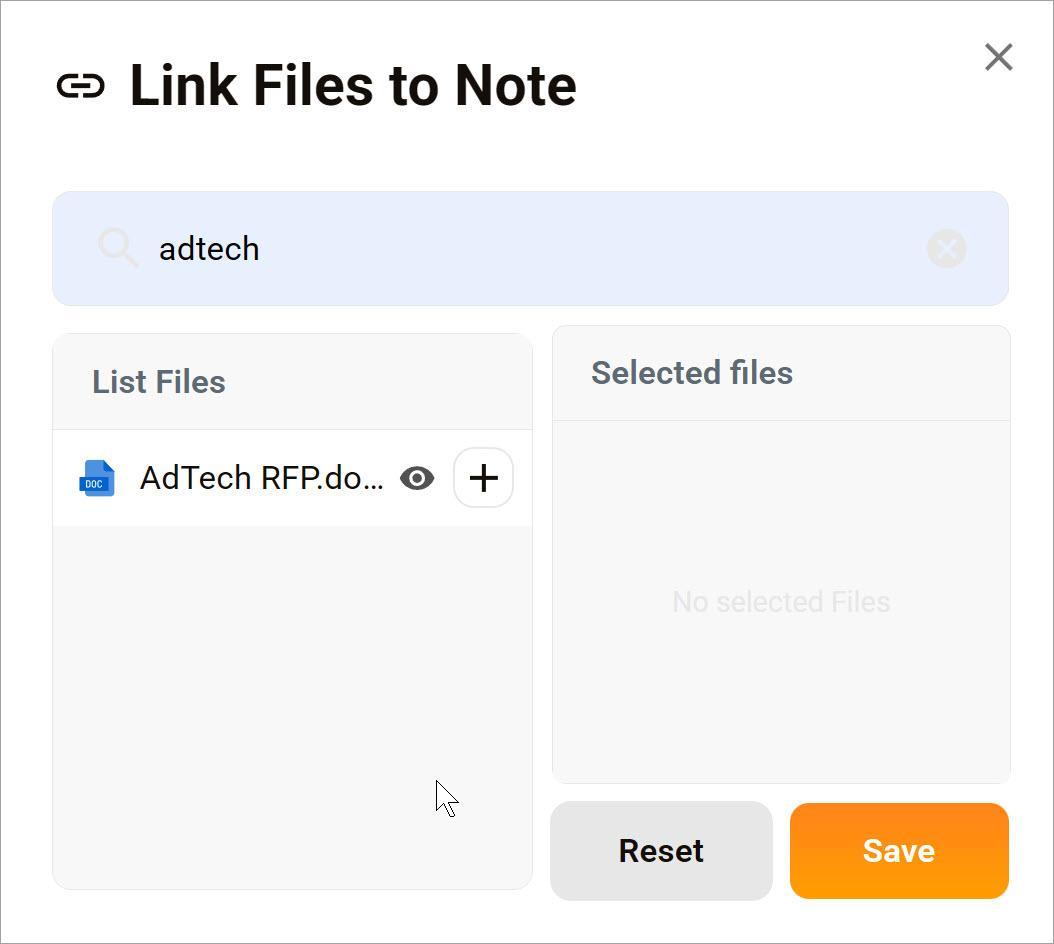
You can attach a file from the Personal or Organization workspace during note creation or after the note is saved.
- Click the link icon.
- Enter a search term.
- Click the plus icon to move the file to the Selected files window.
- Optionally, click the eye icon to view the file in a new browser tab.
- Click Save.
Share a note
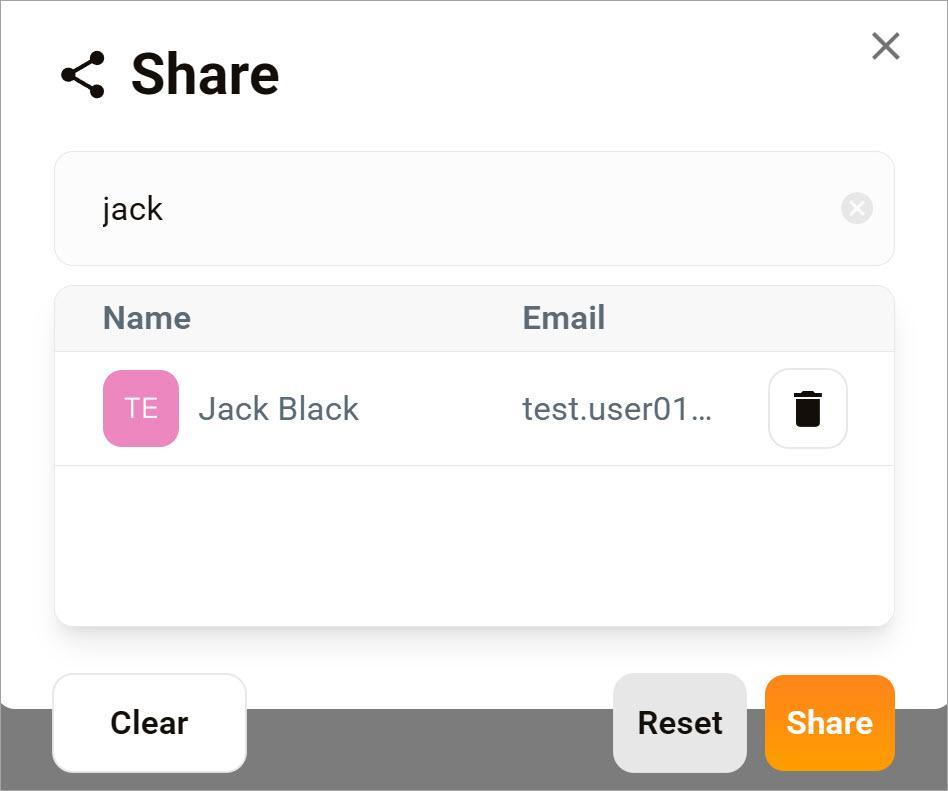
You can share a note with other users in the organization.
- Click the share icon.
- Enter a search term.
- Click a name to select it.
- Click Clear to remove selected names.
- Click Reset to clear the search field.
- Click Share to confirm choices and close the window.
Delete a note
- In My Space, click Quick Notes.
- Locate the note and click the three-dot icon.
- Select Delete.
- Click Confirm.