Organize your work
Use the Manage Contacts tool to create and maintain records for people outside your organization. Add a new record by entering information into the available fields and saving the entry. Records created in Manage Contacts are private and are not visible to other users in the organization.
🟧 At this time, the tool does not support bulk contact uploads or direct email messaging. To provide external contacts with access to content, use the Share tool to send secure file links outside the organization.
Create a contact
- Go to My Space > Contacts.
- Click Create.
- Fill in the required fields.
- Enter additional information if needed.
- Click Add.
Manage contacts
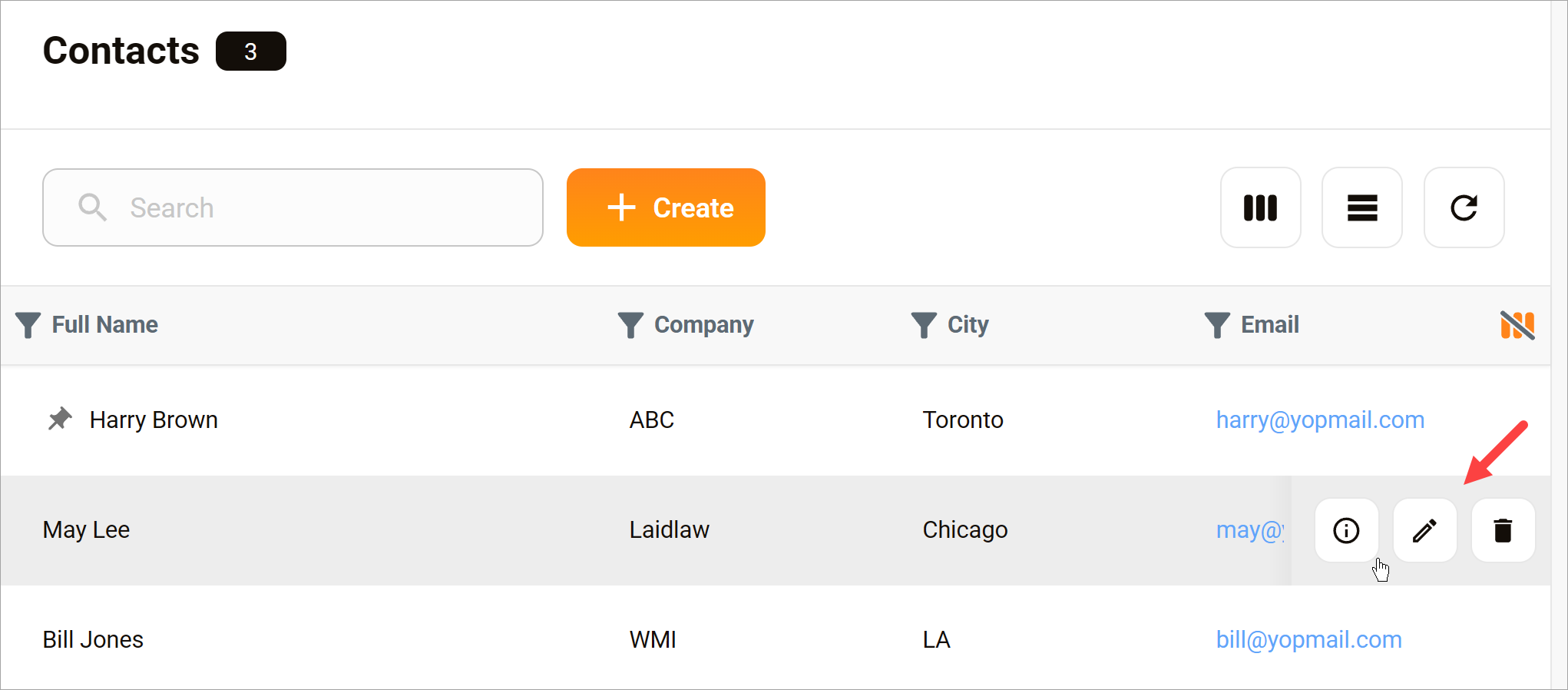
Hover a table row. Three icons display.
- Click the information icon to see contact information without opening the record.
- Click the pencil icon to edit the record.
- Click the trash icon to delete the contact.
Switch to card display
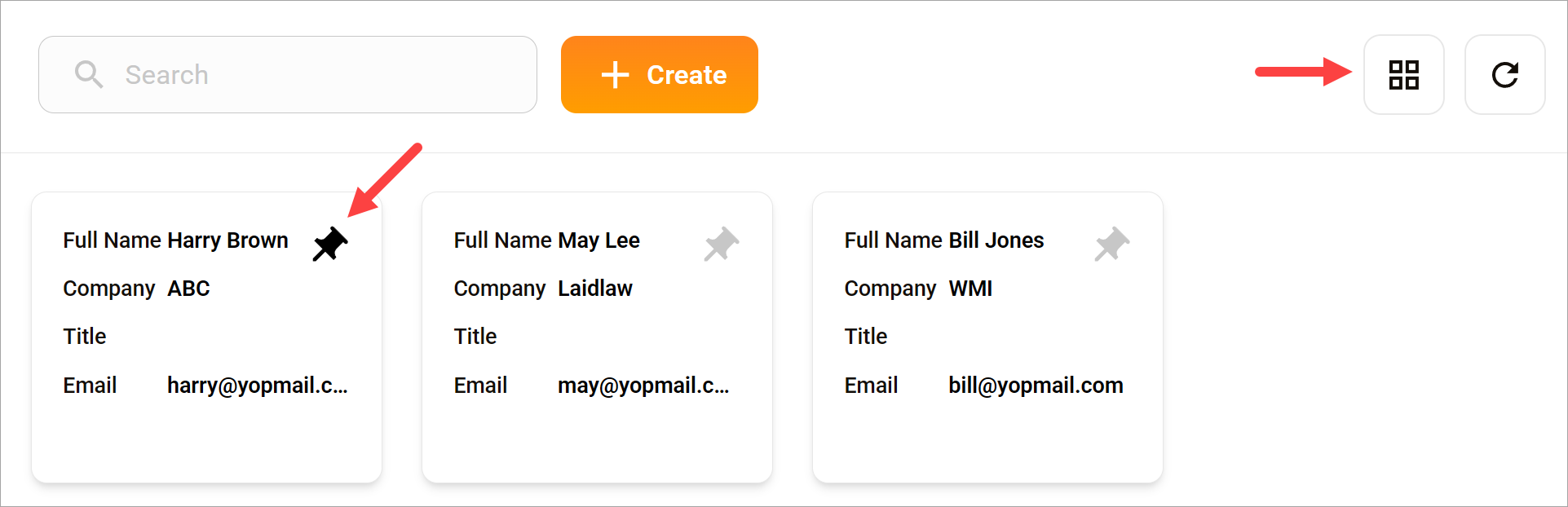
Click the icon with three horizontal bars to switch from table view to card view. In card view, you can pin contacts to make them easier to find. To switch back to table view, click the grid icon.