Add a layer of security
Two-factor authentication (2FA) helps protect your account by requiring a second form of verification when you sign in. In addition to your password, you’ll confirm your identity using a code from your mobile device.
Before you begin
- Make sure you can access your email.
- Install an authenticator app (such as Google Authenticator or Microsoft Authenticator) on your mobile device.
Enable 2FA
- Click Settings in the side menu.
- Scroll down to the Security heading,
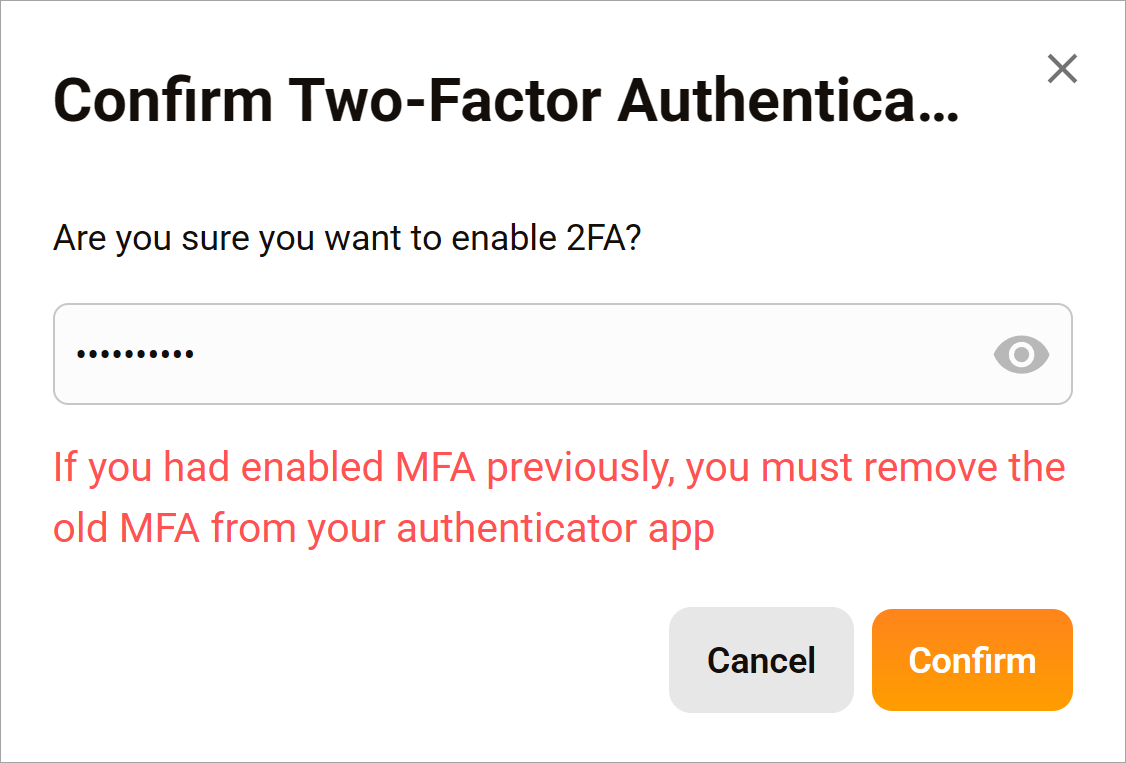
- In the pop-up, enter your account password.
- Click Confirm.
Set up your authenticator app
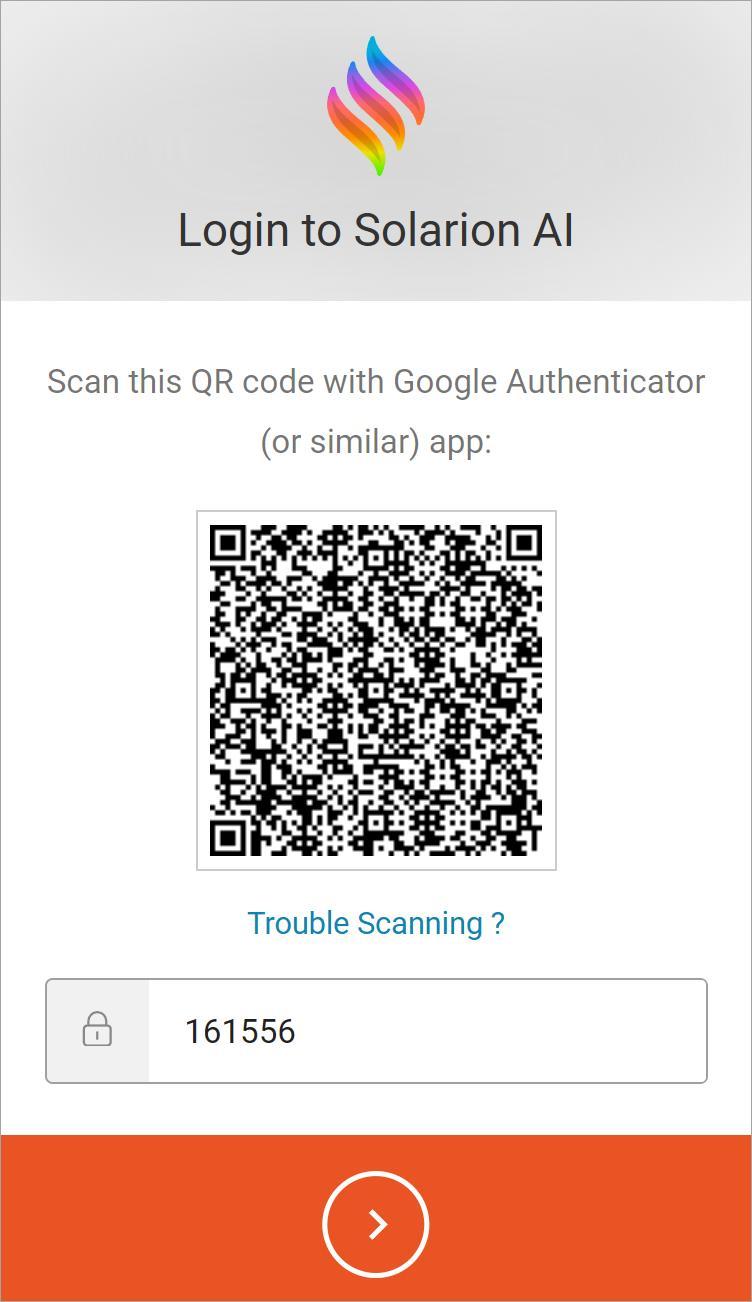
- Open an authenticator app on your mobile device.
- Scan the QR code on screen.
- Locate the six-digit verification code for your account in the app.
- Enter the code into the form.
- Click the arrow icon. The workflow returns you to your account.
Sign in with 2FA
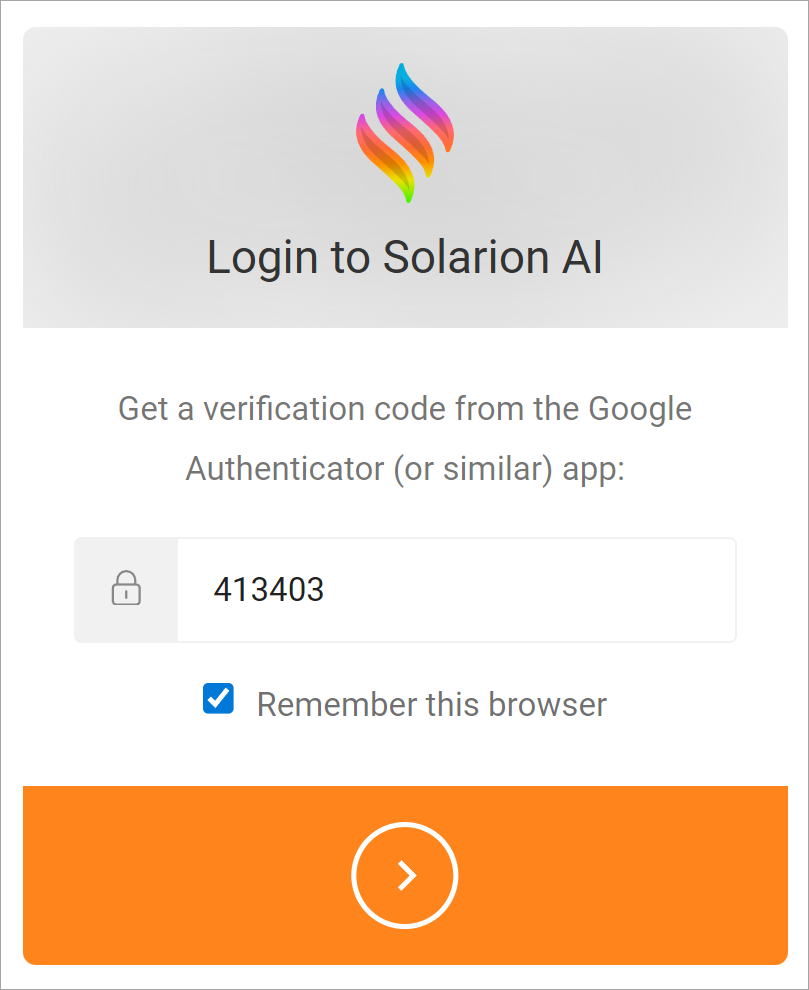
After enabling 2FA, you’ll be asked to enter a verification code each time you sign in. Open your authenticator app to retrieve the code. Optionally, select Remember this browser to skip the 2FA step for 24 hours.
Disable 2FA
To turn off two-factor authentication:
- Go to the Settings page.
- Scroll to Security.
- Click Turn Off.
- Enter your account password.
- Click Confirm. A pop-up displays.
- Open the authenticator app on your mobile device.
- Locate the one-time password (OTP) for this account.
- Enter the code into the pop-up.
- Click Confirm.