Move tasks forward
Boards in My Space help you organize ideas, tasks, and projects within a simple visual workflow. Create cards, group them into columns, and drag them through each stage as work progresses. Boards make it easy to track planned, active, and completed work in one place.
🟧 Not sure how to use boards or why they’re valuable? Click here to learn how boards help organize and track work.
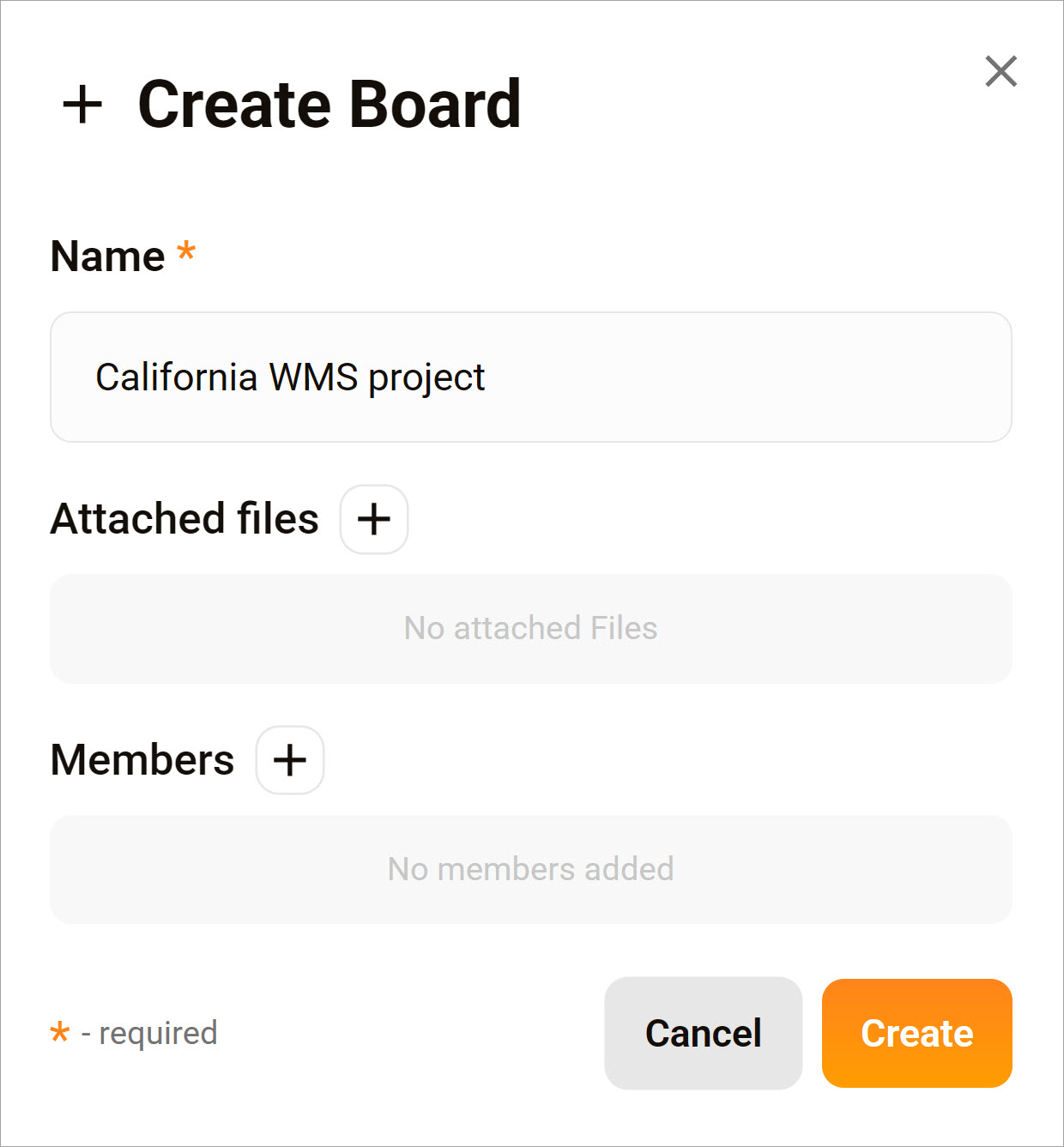
Create a board
A board is a tile that sits on the canvas. Boards hold multiple cards and display different stages.
- In My Space, click Boards.
- Click Create.
- Enter a board name.
- Optionally, attach a file or add a user.
- Click Create.
Add a card
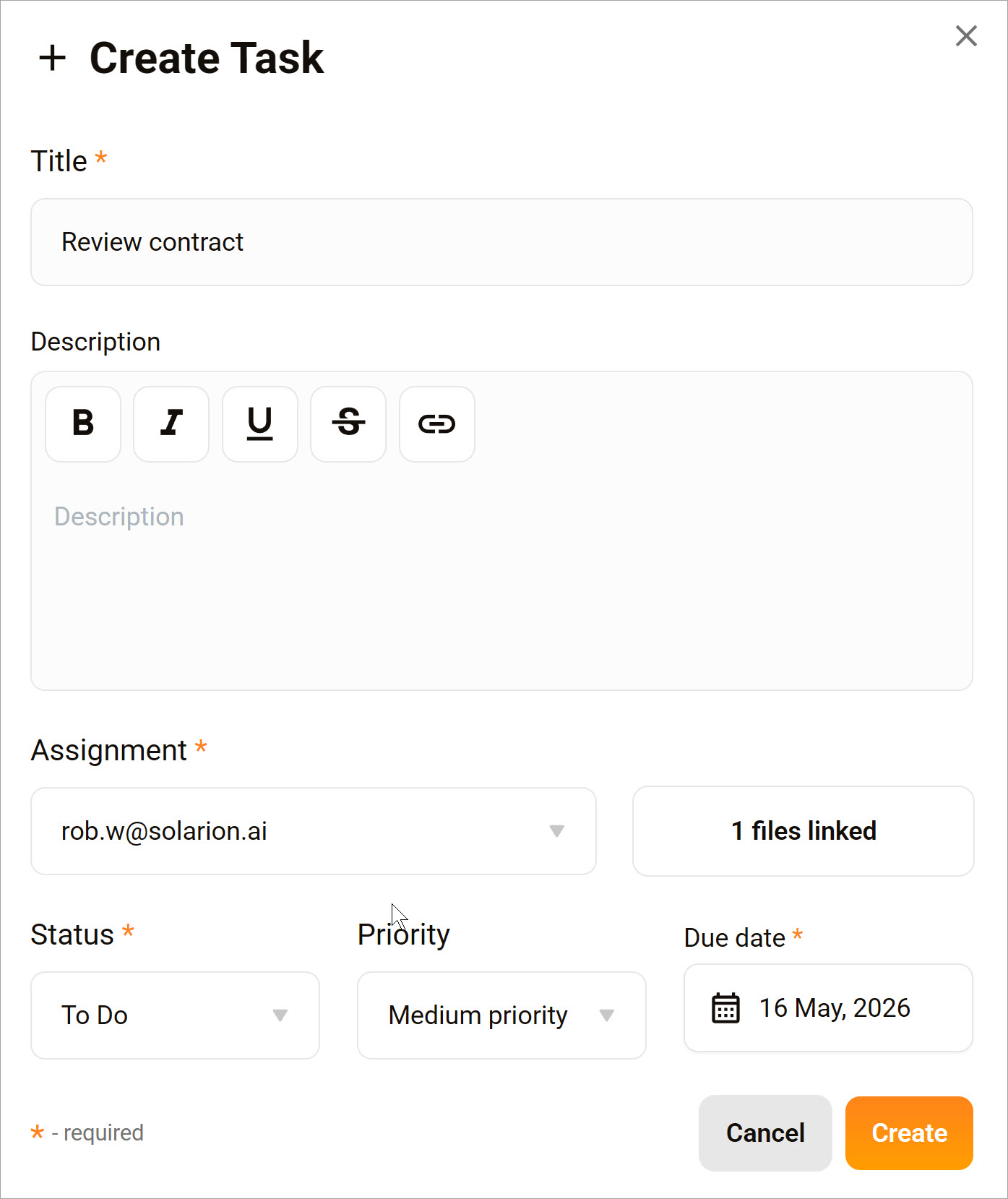
Create cards inside a board to track tasks and work items.
- Click a board.
- Click + Create task under a column.
- Enter a title.
- Click the Assignment field and select an option. You can assign a card to only one user.
- Optionally, attach files or assign users.
- Choose a Status. The default is To Do.
- Choose a priority.
- Use the calendar picker to set a due date.
- Click Create.
Link to a file
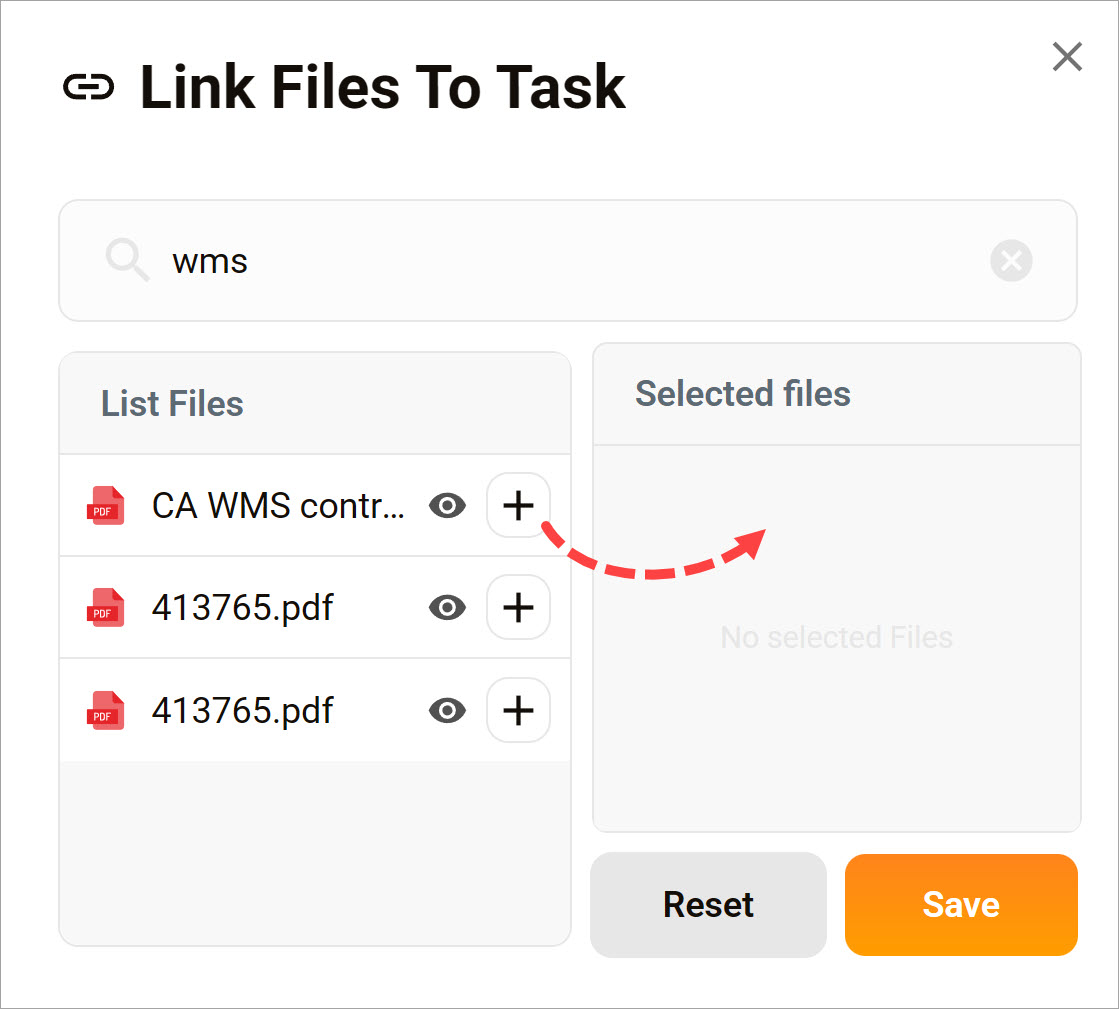
You can link files stored in your Personal or Organization workspace. You cannot upload files directly to a task card.
- Enter a search term.
- Locate a file in the List Files column.
- Optionally, click the eye icon to preview the file in a new browser tab.
- Click the plus (+) icon to move the file to the Selected files window.
- Click Save.
Remove a link
To remove a file link from a task:
- Hover the task.
- Click Edit.
- Click the Files button.
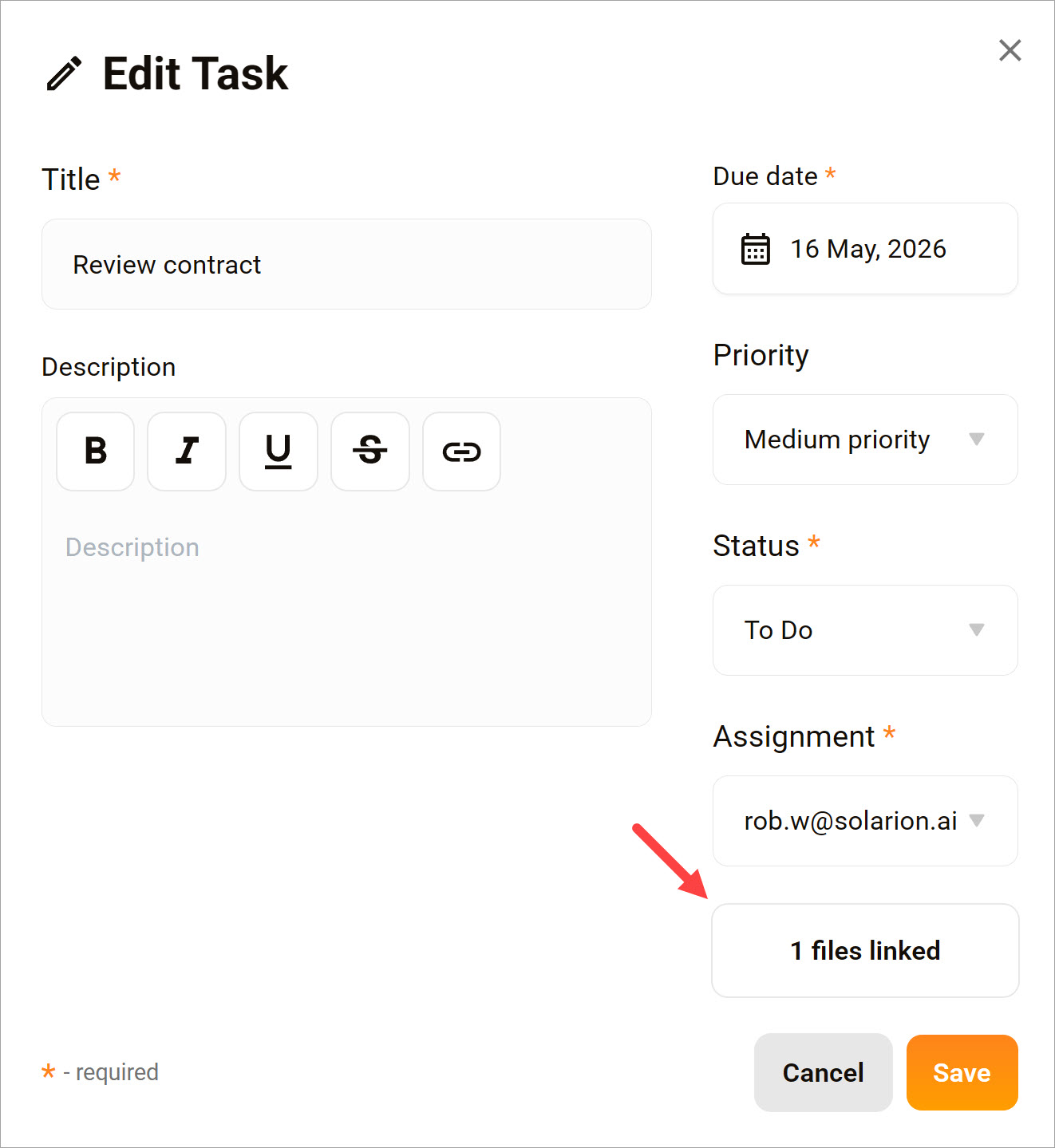
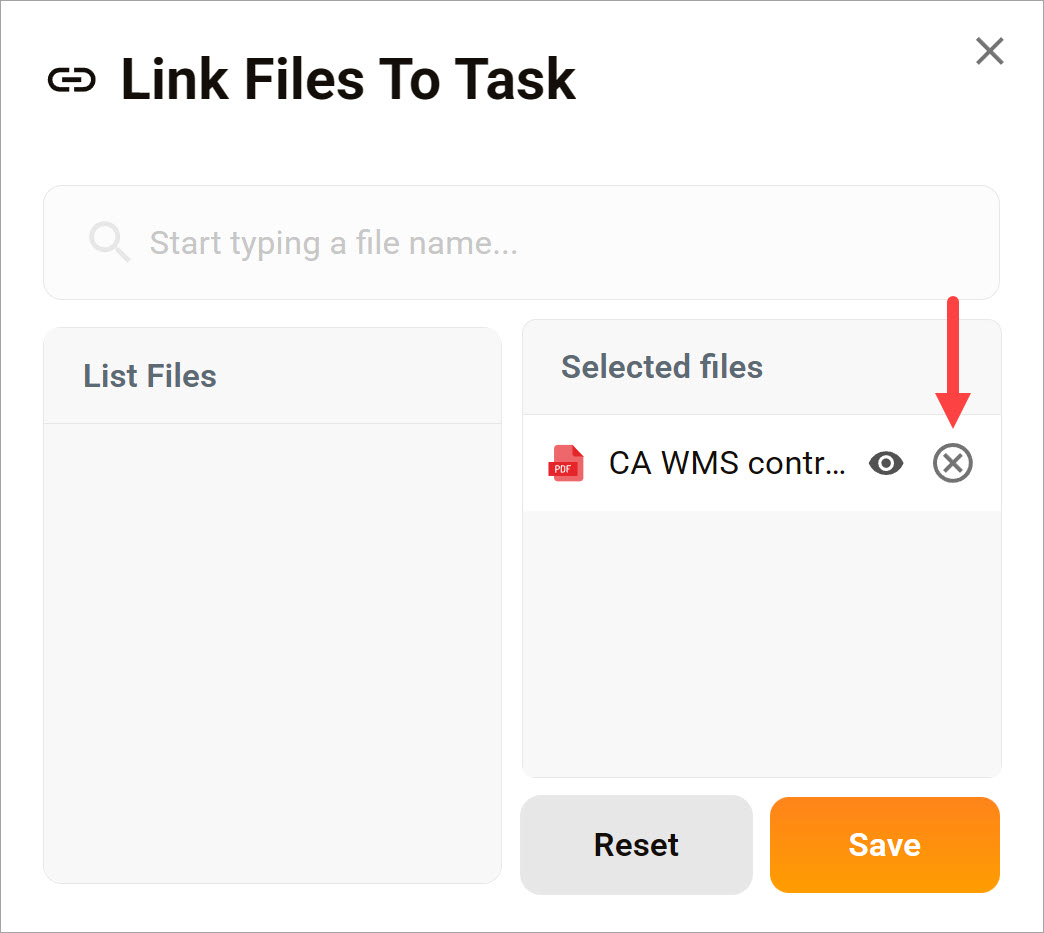
In the pop-up, click the X icon next to the file. Click Save in each window.
Manage a task
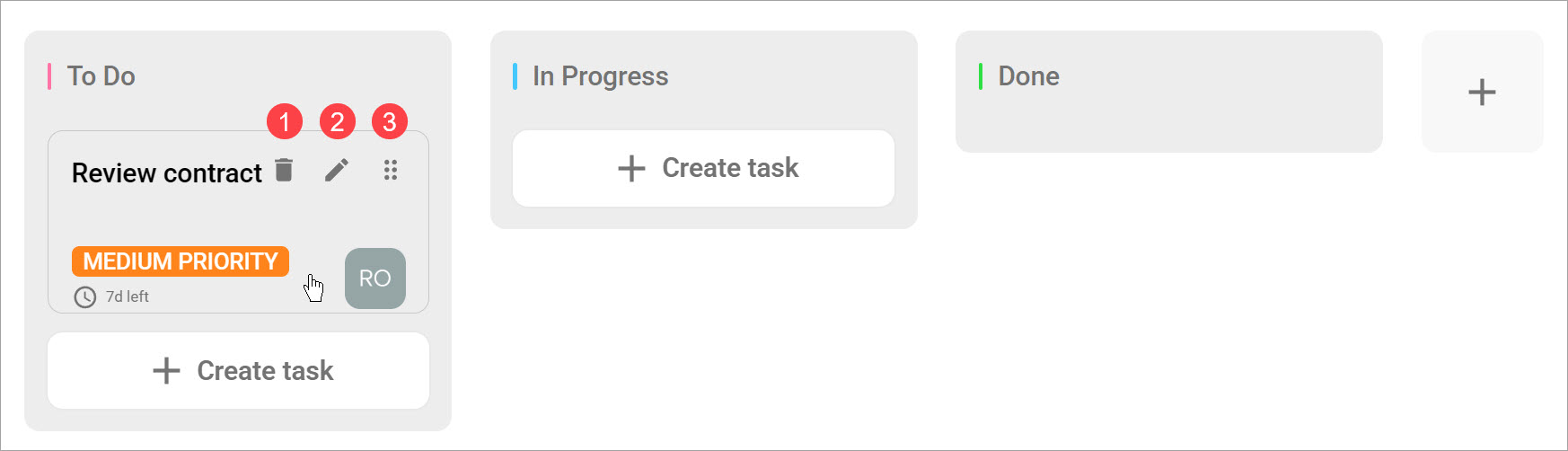
Hover a card to unhide the task icons.
- Delete the task.
- Edit the task.
- Click the Move icon and drag the task to a different stage.
Manage stages
Each board comes with default columns that define project stages: To Do, In Progress, and Done. You can add, remove, or edit the default settings.
Add a column
- Open a board.
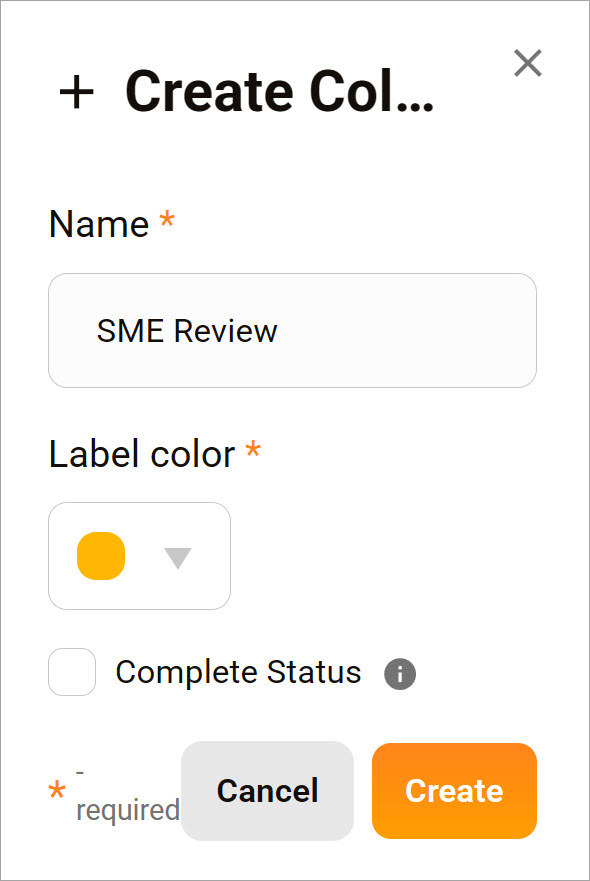
- Click the plus (+) icon. A pop-up displays.
- Enter a name.
- Select a color.
- Click Create.
Move a column
Click the Move icon and drag the column to a new location.
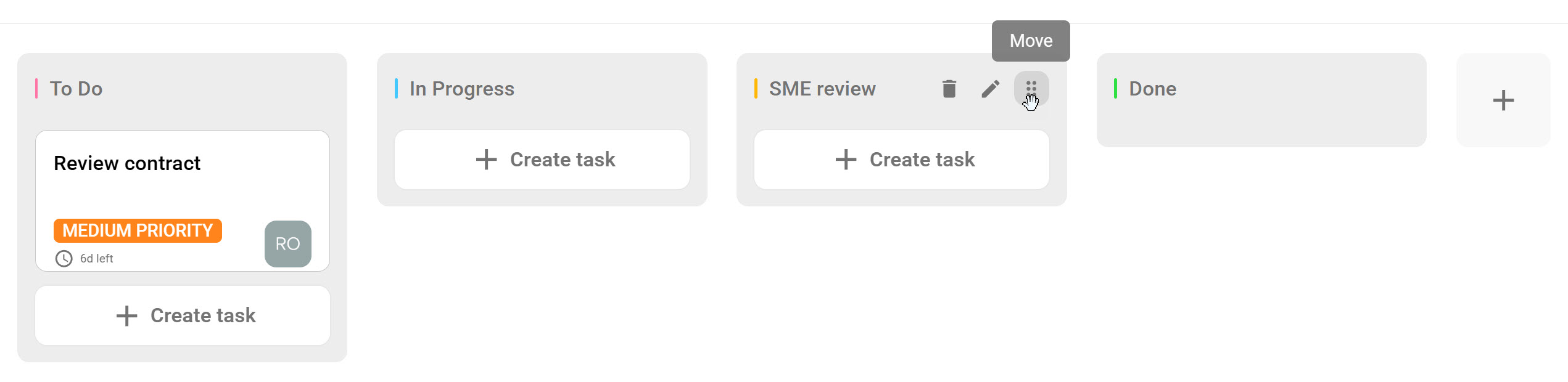
Edit a column
Hover over the top of the column and click the pencil icon.
Remove a column
Hover over the top of the column and click the trash icon. Then click Yes in the confirmation pop-up. You cannot delete a column that contains tasks.
Board tools
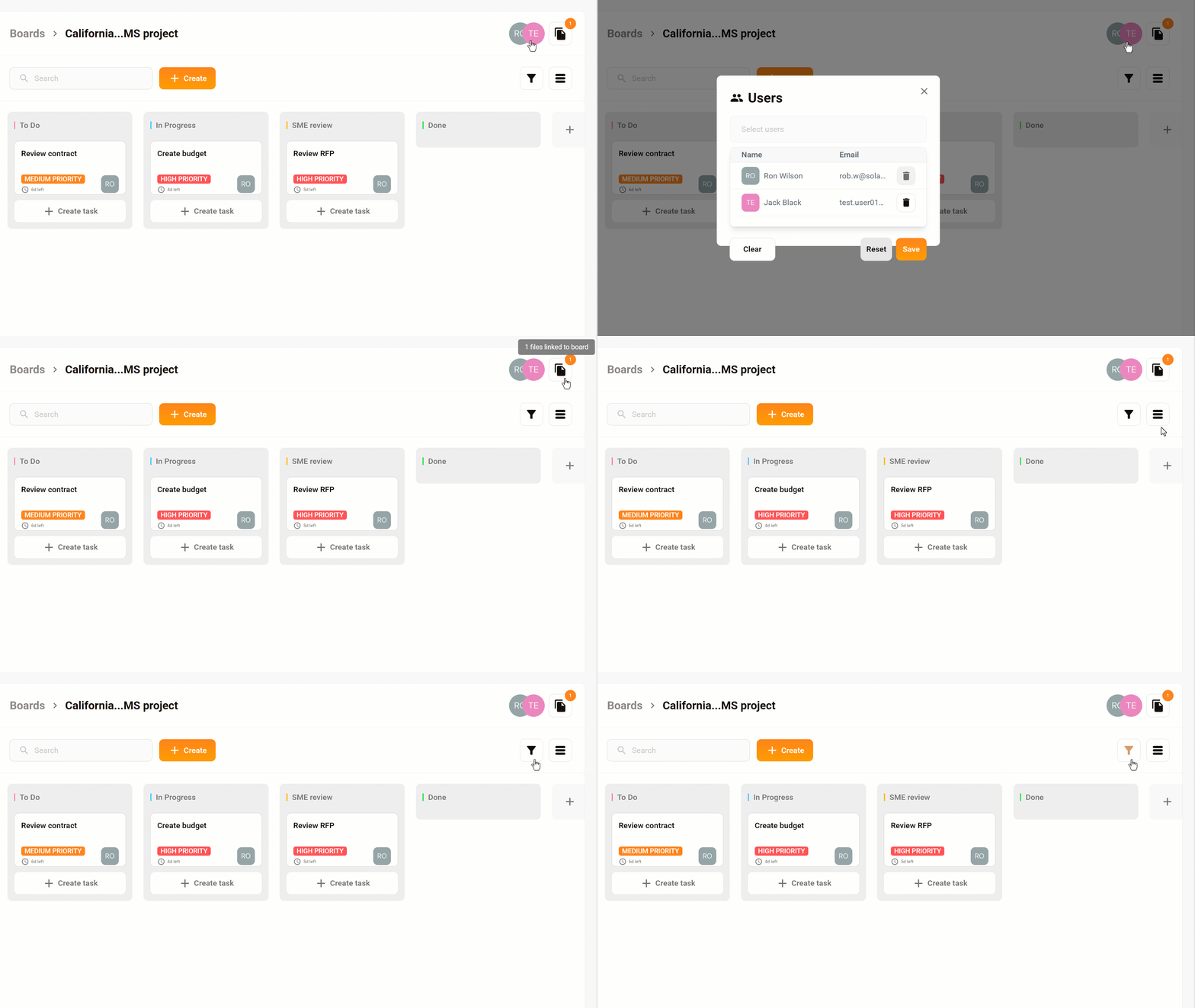
Use the icons in the top-right corner of the board to manage users, files, layouts, and task visibility.
Users
Click the icon to add users to the board. Only users on the board can be assigned to tasks.
Files
Click the file icon to upload assets to the board. When you create a task, the board automatically adds these assets to the task. If you remove a file from the board assets list, that file will not be added to new tasks, but it remains attached to existing tasks.
View
Click the icon to change the view from a board to a list.
Filter
Click the filter icon to hide or display task based on one or more criteria (e.g. status, priority, etc.).