Manage your LUMA chats
When you use LUMA to ask questions about a file in Solarion, you can save each conversation for future reference. Each saved chat is linked to a specific file, so you can return to important insights, decisions, or information. This article explains how to access and manage saved chats from the file view.
Open the file
All saved chats are associated with a file.
- Go to the relevant workspace (Personal or Organization).
- Locate the file in the table.
- Click the preview (eye) icon. The file opens in a new tab.

Go to the new browser tab. In the top-left corner:
- Go to the file tab you just opened.
- In the top-left corner, click the Chat button.
- Click the menu (hamburger) icon.
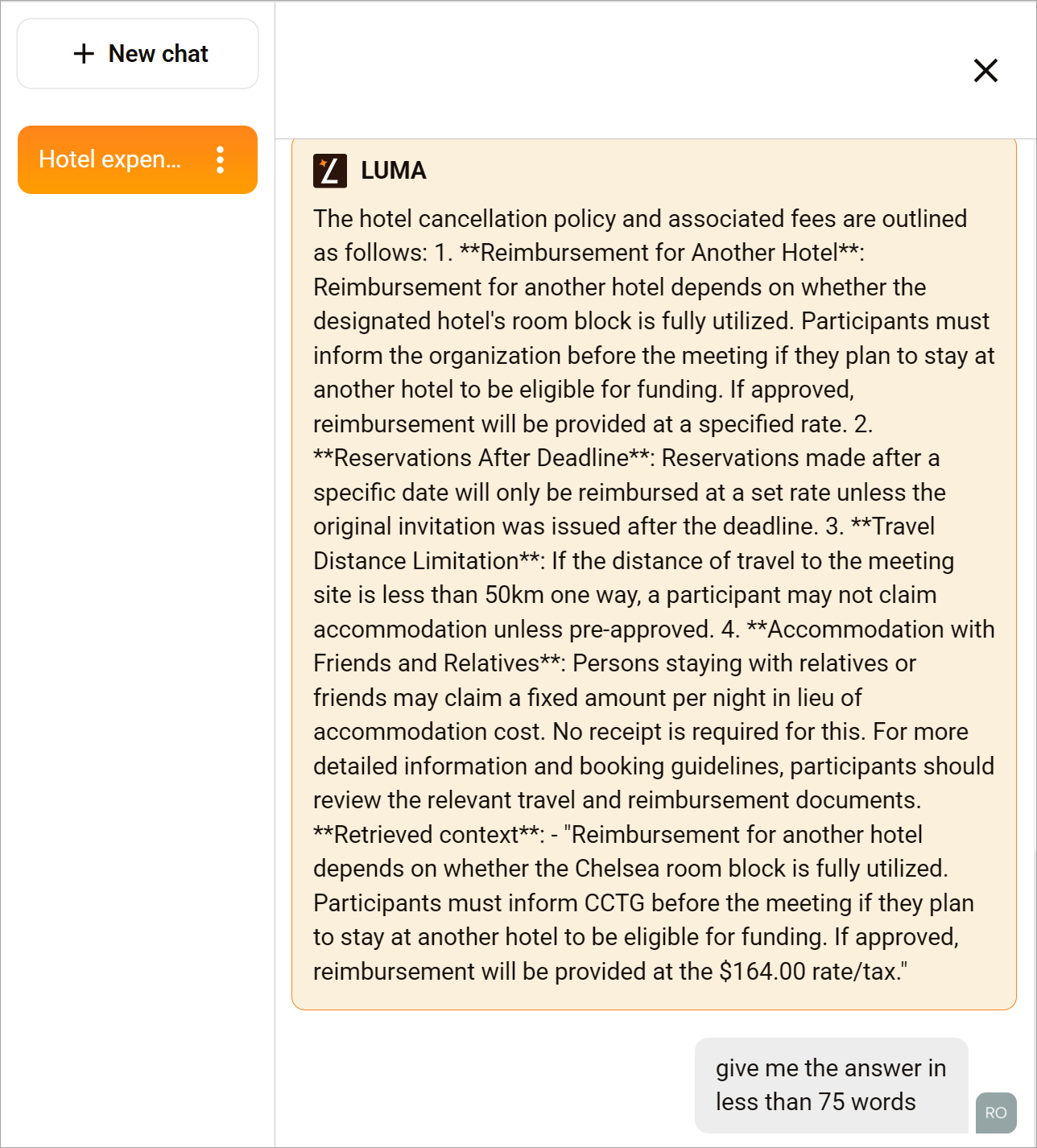
- Select a saved chat. The chat displays in the panel.
Open the chat menu
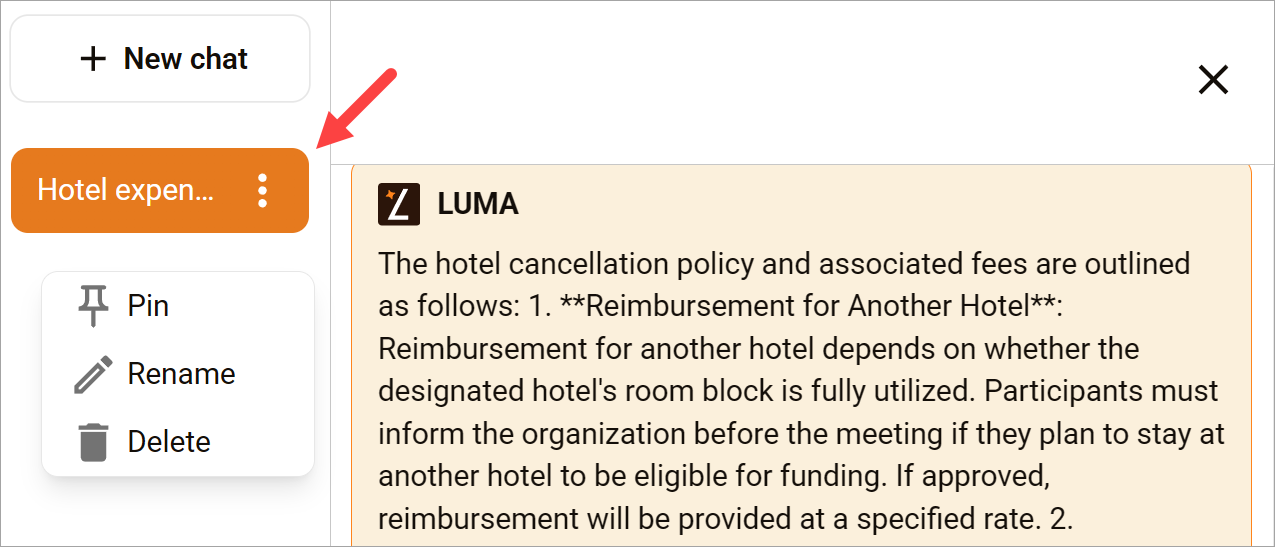
Click the three-dot icon next to the chat name. A menu displays.
Select an option:
- Pin: Pins the chat to the top of the list.
- Rename: Changes the chat name.
- Delete: Permanently removes the chat.