Stay informed
The Alert icon in the top menu keeps you informed about important activity across your organization. Alerts notify you when something requires attention, such as errors, status changes, or important updates, so you can respond quickly without checking multiple areas of the platform.
Manage messages
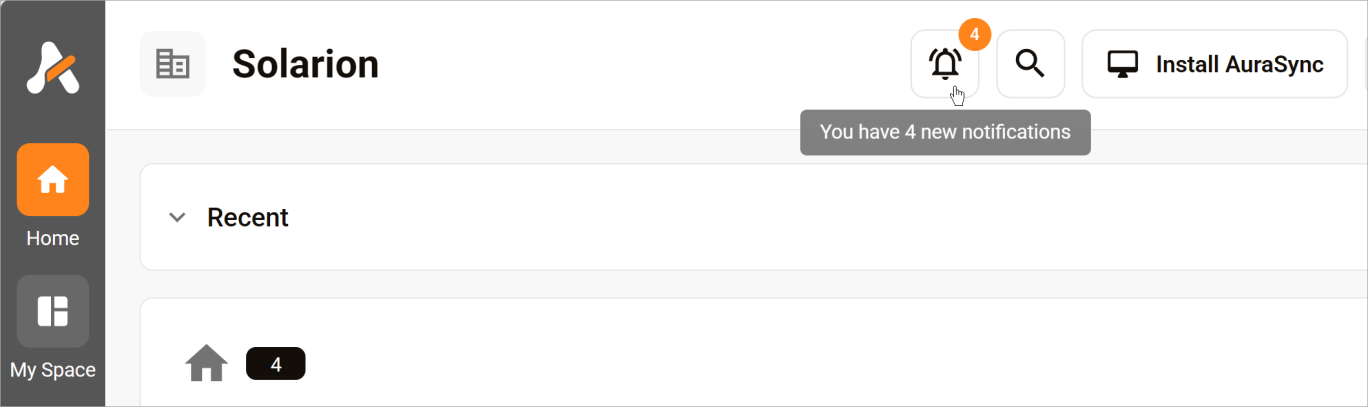
The number on the bell icon indicates the number of unread messages. Click the icon to view messages on the Inbox page. The table displays read and unread messages.
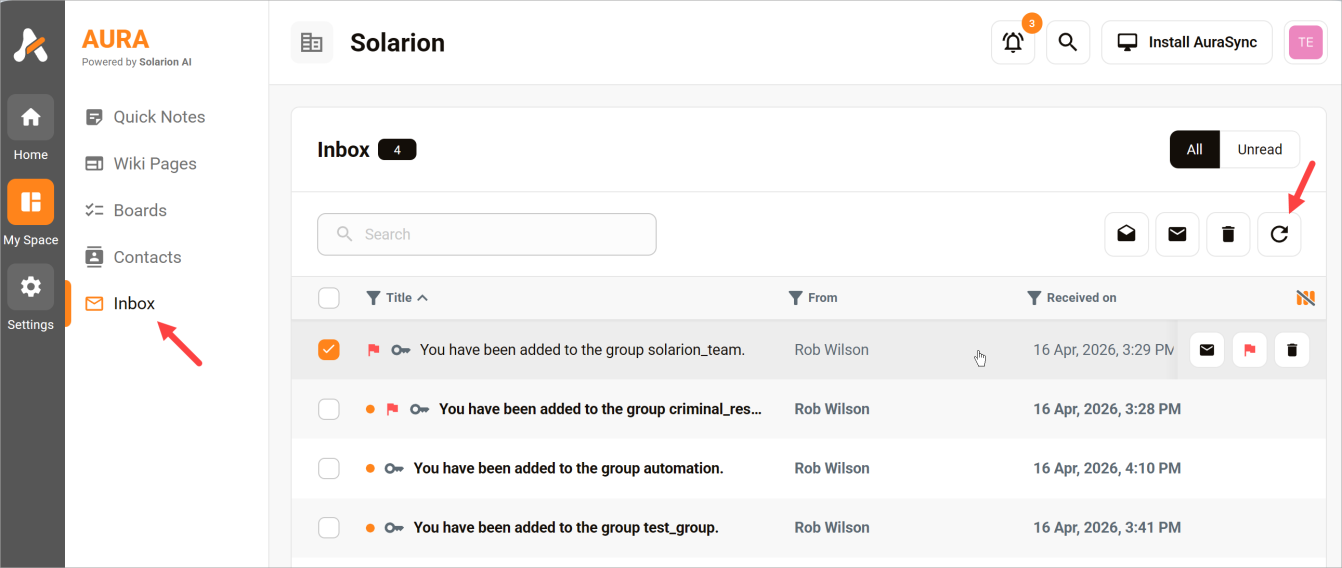
Click a row to open a message. The text displays in a side panel.
- To manage a message, hover a row to display a menu bar. Click an icon to mark a message as read, add a flag to indicate an important message, or delete a message.
- Click the boxes to bulk manage messages.
- Click the refresh icon to sort messages and move the flagged messages to the top of the table.
🟧 You can open the Inbox page from the side menu. Click My Space > Inbox.
Configure alert settings
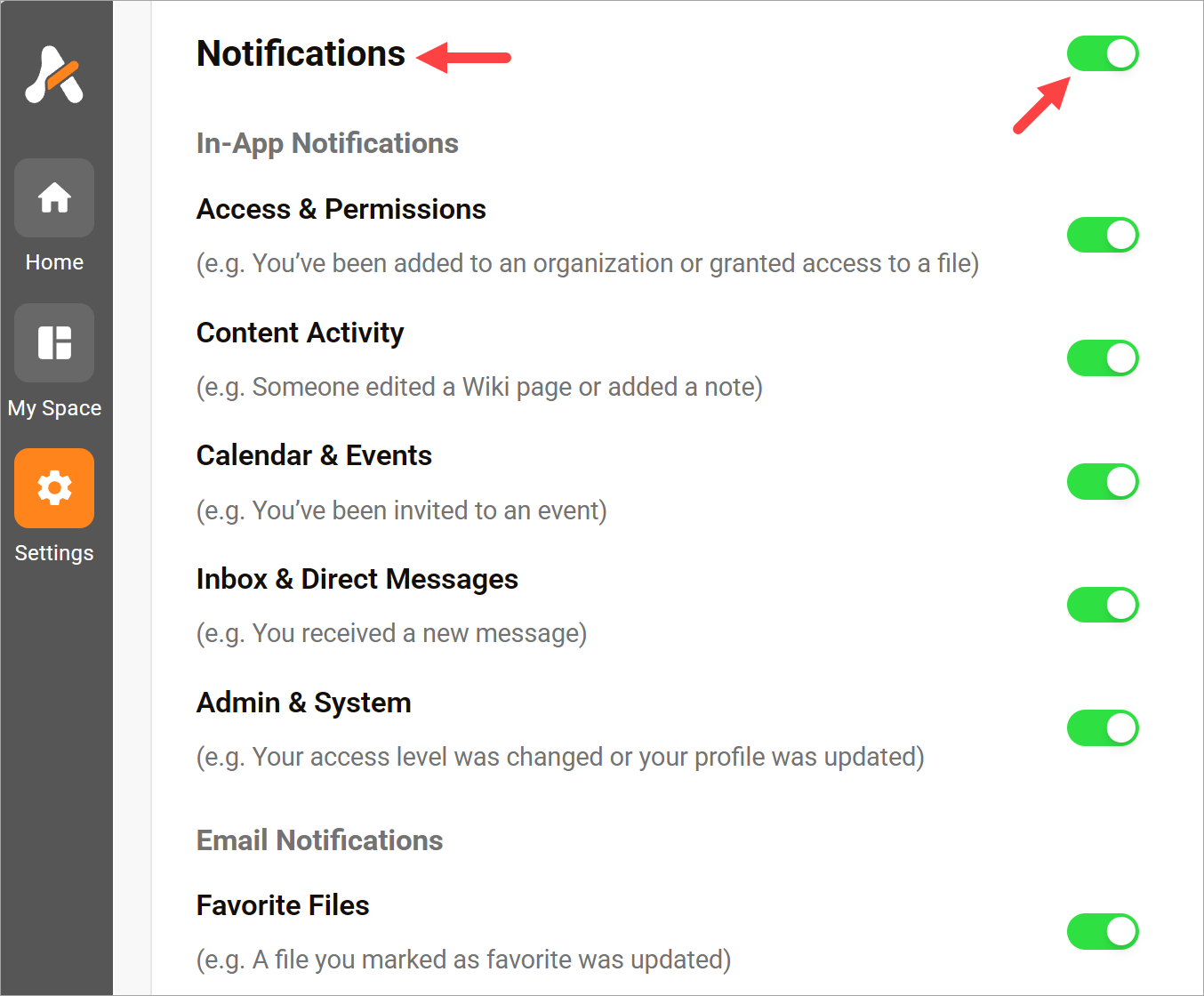
To reduce noise and stay focused, you can customize which message types trigger an alert.
- Go to the side menu.
- Click Settings.
- Scroll down to the Notifications heading.
- Use the first toggle to enable or disable all triggers.
- Use the other toggles to enable or disable specific triggers